

A Comprehensive Troubleshooting Guide for Connectivity and Screen Issues in Your Google Automotive OS-Powered Volvo XC40.
Key Insights for a Flawless Infotainment Experience
- Soft Reset First: For most common glitches like frozen screens or app freezes, a simple soft reset (holding the home button for 20 seconds) is your first and most effective troubleshooting step.
- Stay Updated: Regularly installing over-the-air (OTA) software updates is crucial for performance improvements, bug fixes, and enhancing your Volvo XC40's Google Automotive OS.
- Know When to Seek Professional Help: Persistent issues after multiple resets and updates, such as a completely black screen or hardware malfunctions, often necessitate a visit to a certified US Volvo dealership.
To effectively address Volvo XC40 infotainment connectivity issues, begin by performing a soft reboot of the system—hold the physical Home button for approximately 20 seconds until the display restarts. If problems persist, ensure your Google-based system is updated over the air, re-pair Bluetooth devices, troubleshoot wireless CarPlay adapters, and, as a last resort, consider a factory reset or a visit to a US Volvo dealer for persistent screen freezing or blank displays. This guide provides a complete troubleshooting and fix strategy for common Volvo XC40 screen and connectivity issues.
As a Volvo XC40 owner in the US, encountering glitches with your vehicle's infotainment system can be quite frustrating. This technologically advanced system, powered by Google Automotive OS, is central to your driving experience, managing everything from navigation and communication to entertainment. When it falters—be it a frozen screen, app crashes, or connectivity drops—it disrupts the seamless integration you expect. This article delves into practical, step-by-step solutions tailored for American drivers of both the standard XC40 and the electric XC40 Recharge, helping you restore optimal performance and connectivity.
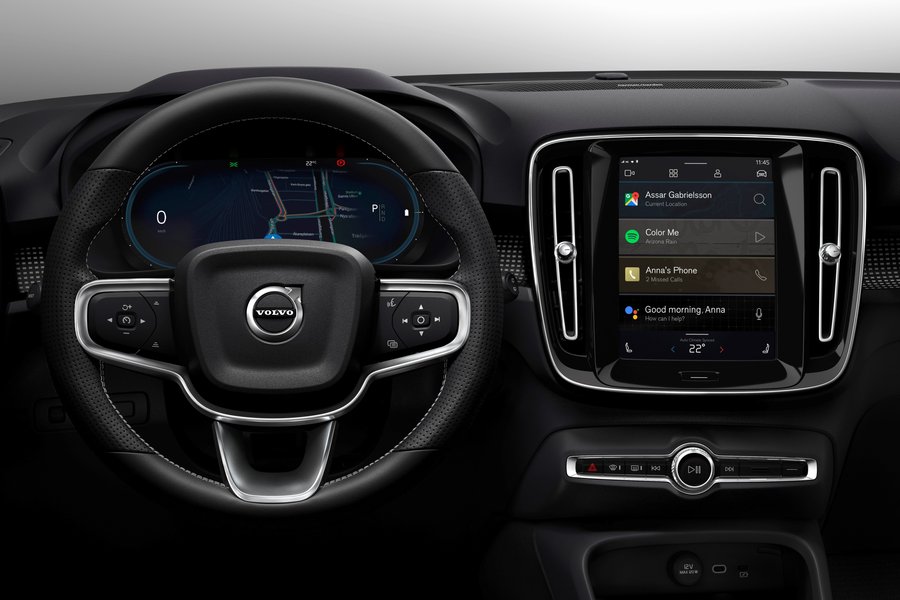
The Volvo XC40's central display, powered by Google Automotive OS.
Understanding Your Volvo XC40's Google Automotive OS
The Volvo XC40, particularly models from 2020 onwards, features an infotainment system built on Google Automotive OS (AAOS), not to be confused with Android Auto, which is merely a projection system. This embedded operating system integrates Google Assistant, Google Maps, and the Google Play Store directly into your vehicle, offering a rich digital experience without needing your phone for core functions. Volvo has been a pioneer in deploying AAOS, enabling over-the-air (OTA) updates for continuous improvements and new features. Newer XC40 models, including the XC40 Recharge, boast enhanced processors and user interfaces, with significant updates like the "Volvo Car UX" being rolled out to eligible vehicles globally, including those in the US, starting in March 2026.
This sophisticated architecture aims to minimize distractions by having services run natively. However, like any complex software platform, it can experience occasional glitches, app crashes, or Volvo XC40 Google OS connectivity issues. For instance, the new infotainment system in the 2026 XC40 is designed to be more than twice as responsive, with graphics generating up to 10 times faster, thanks to new central processors and Qualcomm Snapdragon Cockpit Platform integration. Despite these advancements, understanding the fundamental troubleshooting steps remains essential for any Volvo XC40 owner.
Most Common Volvo XC40 Infotainment Problems
While the Google Automotive OS offers a premium experience, several recurring infotainment issues are commonly reported by XC40 owners. These can range from minor annoyances to significant disruptions affecting navigation, communication, and entertainment.
Frozen or Unresponsive Touchscreen
This is arguably the most noticeable issue, where the center display becomes completely unresponsive or freezes during operation. It can occur at startup or while driving, sometimes accompanied by a black screen.
Typical Causes:
- Software glitches after an incomplete update.
- Memory overload from numerous running applications.
- System overheating during prolonged use.
- Corrupted cache data from previous sessions.
Bluetooth Connectivity Issues
Many XC40 owners experience problems with Bluetooth, including failure to automatically connect, intermittent audio dropouts during calls or music playback, inability to recognize new devices, or unexpected disconnections.
Wireless CarPlay Malfunctions
For iPhone users, wireless CarPlay problems are common. Since Volvo vehicles often rely on aftermarket adapters for wireless CarPlay (or native support varies by model year), compatibility issues can arise. These include failure to auto-connect, audio stuttering, unresponsive touch inputs via the CarPlay interface, or navigation delays.
App Crashes and Freezes
The Google Automotive OS relies heavily on applications. Issues like Google Maps freezing, music streaming apps stopping unexpectedly (e.g., Spotify, YouTube Music), climate control interfaces becoming unresponsive, or settings menus failing to open are common.
Google Account Synchronization Problems
Given the infotainment system's ties to your Google account, synchronization issues can lead to problems such as failure to remember preferred settings, loss of saved locations, inability to access purchased content, or voice recognition failing to recognize preferences.
"System Starting" Loop
The infotainment screen may get stuck on a "System Starting" message, preventing the system from booting completely. This often indicates a deeper software issue or corrupted boot files.
Volvo Infotainment Reset Guide: Soft Resetting Your XC40 System
A soft reset should always be your first troubleshooting step for minor glitches or unresponsive behavior. This process clears temporary memory without affecting your stored settings, profiles, or paired devices, making it a crucial Volvo XC40 infotainment not working fix.
How to Perform a Soft Reset on Your Volvo XC40 Infotainment System (Google Built-in Models):
- Ensure your vehicle is parked safely: With the engine running or in accessory mode.
- Locate the Home Button: This is the physical button situated directly below the center display.
- Press and hold the Home button: For approximately 20 seconds.
- Observe Display Changes: The screen will first enter a "cleaning mode," then turn off completely (go black). Continue holding.
- Release When Volvo Logo Appears: Release the button once the Volvo logo appears, indicating the system is restarting.
- Allow Full Boot-Up: Wait patiently as the system reboots completely, which can take 1-2 minutes.
This soft reset process resolves approximately 90% of minor infotainment glitches and is particularly effective for addressing touchscreen responsiveness, application freezes, and minor connectivity issues. It's a quick and easy way to address many Volvo XC40 screen problems.
When to Use a Soft Reset:
- Screen is frozen or unresponsive.
- Apps are crashing or not opening.
- Bluetooth connectivity is problematic.
- System is running noticeably slower than usual.
- Voice commands aren't working properly.
Comprehensive Factory Reset Guide for Persistent Issues
If soft resets don't resolve your XC40's infotainment problems, a factory reset may be necessary. This more drastic approach restores the system to its original factory settings but will erase all your personal settings, stored contacts, and paired devices.

A factory reset will restore the system to its initial state, requiring re-setup.
Important Considerations Before Factory Resetting:
- Backup Important Data: Make note of saved navigation destinations, radio presets, and preferred settings.
- Ensure Adequate Time: The process can take 10-15 minutes to complete.
- Check Battery Level: Your vehicle should have at least 50% charge to prevent interruption.
- Gather Login Information: You'll need your Google account credentials to restore full functionality.
How to Perform a Factory Reset on Your Volvo XC40:
- Park your vehicle safely: And ensure the engine is running.
- Navigate to the Settings menu: On your center display.
- Select "System": Followed by "Reset options" (or "Privacy" and then "Reset" on some versions).
- Choose "Factory data reset": Or "Erase all data."
- Confirm your selection: The system may require your pattern or PIN.
- Wait patiently: As the system completes the reset process.
- Reconfigure your settings: Once the system reboots.
After a factory reset, you'll need to re-pair mobile devices, log back into your Google account, reinstall third-party applications, and reconfigure all your preferences. This is a powerful Volvo XC40 Android Automotive fix for persistent issues.
Updating Google Automotive OS on Your Volvo XC40
Regular software updates are crucial for maintaining your XC40's infotainment performance, improving stability, and adding new features. Volvo frequently releases over-the-air (OTA) updates to address bugs, enhance security, and deliver an improved user experience.
How to Check For and Install Updates:
- Connect to Wi-Fi: Ensure your XC40 is connected to a stable Wi-Fi network for faster and more reliable downloads.
- Navigate to Settings: Go to "Settings" > "System" > "Advanced" > "System updates" (or sometimes just "Software Update").
- Check for Updates: The system will search for available software packages.
- Download and Install: Follow the prompts to download and install any available updates.
- Wait for Completion: The system will restart automatically during the update process. Do not interrupt power to the vehicle.
Important Update Considerations:
- Updates typically require 20-45 minutes to complete.
- Your vehicle must remain stationary with the engine running or in a ready state during installation.
- Ensure your battery charge is above 50% to prevent interruption.
- Some updates may require multiple system restarts.
- The March 2026 software update introduces the new "Volvo Car UX" interface, offering improved responsiveness and easier access to frequently used functions. This update significantly impacts millions of Volvo vehicles, including eligible XC40s.
Troubleshooting Specific Connectivity Challenges
Different connectivity problems often require specific troubleshooting approaches. Here’s how to tackle common Volvo XC40 Google OS connectivity issues.
Fixing Bluetooth Pairing Problems
When your phone won't connect to your XC40 or frequently disconnects:
- Delete Existing Pairings: Remove your phone from both the car's memory and your phone's Bluetooth settings.
- Restart Both Devices: Turn your phone off and on, and perform a soft reset on your XC40 infotainment system.
- Re-pair Devices: Initiate pairing from your XC40's Bluetooth settings menu.
- Check Compatibility: Ensure your phone supports Bluetooth 4.0 or higher and its OS is up to date.
- Limit Auto-Connect: Avoid having multiple phones attempt to auto-connect simultaneously; set a primary device if possible.
Resolving Wireless CarPlay Adapter Issues
If you're facing problems with your Volvo XC40 wireless CarPlay not working (especially with aftermarket adapters):
- Power-Cycle the Adapter: Unplug the wireless CarPlay adapter for 60 seconds, then plug it back into the dedicated data USB port (often marked with a white frame).
- Update Adapter Firmware: Many adapters (e.g., Carlinkit, Ottocast) require regular firmware updates via their companion apps or web interfaces.
- Forget and Re-pair: On your iPhone, forget the adapter from Bluetooth and Wi-Fi lists, then re-pair via the adapter's on-screen prompt.
- Verify iPhone Compatibility: Ensure your iPhone supports wireless CarPlay and is running the latest iOS.
- Use Certified Cables: If falling back to wired CarPlay, use an Apple-certified USB cable.
Addressing Google Services Connectivity Problems
When Google apps (Maps, Assistant, Play Store) won't connect properly or show errors:
- Check Cellular Signal: Google services require data connectivity, either via your linked phone or the vehicle's built-in SIM (if applicable).
- Reauthorize Google Account: Sign out and then sign back into your Google account within the car's system settings.
- Clear App Cache: Navigate to Apps in settings and clear the cache for problematic applications like Google Maps or Play Store.
- Check Service Status: Verify that Google services are operational through your phone or computer, ruling out widespread outages.
When to Visit Your US Volvo Dealership
While many infotainment issues can be resolved with at-home troubleshooting, some problems indicate deeper hardware or software corruption that requires professional attention. US Volvo dealerships are equipped with specialized diagnostic tools and software (like VIDA) that can address these complex issues.
Seek Dealership Assistance When:
- Persistent Black Screen: The screen remains completely black or perpetually stuck on the "Volvo" logo after multiple soft and factory resets.
- Hardware Failure: The screen displays physical damage, visual artifacts, or touch input is completely unresponsive.
- System Won't Boot: The system consistently fails to boot past the Volvo logo or gets stuck in a "System Starting" loop, indicating serious software corruption or a module issue.
- No Audio Across All Sources: The audio system is completely inoperative, suggesting issues with the amplifier or speakers.
- Repeated Update Failures: Over-the-air updates consistently fail to install or report error messages about modules.
- Under Warranty: For potentially costly repairs, especially if your XC40 is still under warranty, it's best to consult the dealership.
What to Expect at US Volvo Dealerships:
- Diagnostic Fees: Typically range from $150-$250, often waived if repairs are performed.
- Software Reflashing: May take 2-3 hours if required to reinstall the operating system.
- Hardware Replacements: Components like screens or control modules can cost $500-$1,500+ out of warranty.
- Loaner Vehicles: Often available for extended repairs.
Volvo has made significant investments in new central processors and a revamped infotainment software suite for 2026 models, aiming to reduce hardware-related issues. However, older models may still experience component failures that require professional repair.
Preventing Future Infotainment Problems
Proactive maintenance and good digital hygiene can significantly reduce the likelihood of future Volvo XC40 screen problems and connectivity glitches.
Regular Maintenance Tips:
- Install Updates Promptly: Don't delay available software updates; they often contain critical bug fixes and performance enhancements.
- Restart Periodically: Perform a soft reset every few weeks to clear temporary memory and keep the system responsive.
- Manage Applications: Avoid overloading your system with unnecessary or experimental apps.
- Maintain Device Compatibility: Keep your smartphone's operating system updated for optimal Bluetooth and CarPlay connectivity.
- Proper Shutdown: Allow the infotainment system to fully shut down when turning off your vehicle. Avoid rapidly power cycling the car, especially during updates.
Additional Preventive Measures:
- Use High-Quality Accessories: For wired connections (e.g., charging, wired CarPlay), use high-quality, Apple-certified USB cables. For wireless adapters, ensure they are reputable and keep their firmware updated.
- Ensure Proper Ventilation: Keep the area around the center display clear to prevent overheating.
- Keep Touchscreen Clean: Regularly clean the touchscreen with a soft, lint-free cloth to prevent unresponsive areas due to dirt or smudges.
- Address Electrical System Issues: Low battery voltage can cause various electronic glitches; ensure your vehicle's 12V battery is in good health, especially in XC40 Recharge models where main battery health can sometimes impact auxiliary systems.
Regular interaction and maintenance ensure a smooth user experience.
FAQ: Volvo XC40 Infotainment Troubleshooting
Conclusion
The Volvo XC40's infotainment system, powered by the sophisticated Google Automotive OS, offers a wealth of features that enhance the driving experience. While generally robust, occasional glitches are an inherent part of any advanced technological system. By understanding the common problems and applying the systematic troubleshooting steps outlined in this guide—from simple soft resets and critical software updates to knowing when a professional dealership visit is necessary—you can effectively manage and resolve most Volvo XC40 infotainment connectivity issues. Proactive measures, such as keeping software current and practicing good digital hygiene, will ensure your system runs smoothly, keeping you connected and focused on the road ahead.
