

Don't let a black or frozen Tesla screen ruin your drive. Learn how to perform essential resets and troubleshoot common issues right from your garage.
Encountering a black or unresponsive screen in your Tesla can be startling, but often, the solution is simpler than you think. This Tesla MCU Reset Guide offers step-by-step instructions to help you fix common touchscreen problems, including the dreaded "black screen of death," often without the need for a service center visit. We'll cover everything from quick soft resets to more advanced troubleshooting for all Tesla models, including the Model 3, Model S, Model X, and Model Y, specifically tailored for owners across the US.
Highlights of Your Tesla Screen Troubleshooting Journey
- Immediate Fix: Learn the quick and effective soft reset method by holding the steering wheel scroll wheels, often resolving most software-related screen issues in minutes.
- Understanding Your MCU: Discover the critical differences between MCU1, MCU2, and MCU3 systems and how they impact troubleshooting and potential upgrades.
- Advanced Solutions: Explore hard reset procedures and understand the notorious eMMC chip failure common in older MCU1 vehicles, including when an upgrade is the best long-term fix.
Demystifying the Tesla Media Control Unit (MCU)
The Media Control Unit (MCU) acts as the central nervous system for your Tesla's digital experience. It's the powerful computer responsible for operating the large touchscreen display, which controls virtually every aspect of your vehicle, from navigation and entertainment to climate control settings and advanced vehicle diagnostics. A functioning MCU is paramount for a seamless Tesla experience, and understanding its generations can shed light on potential issues.
The Evolutionary Path of Tesla MCUs: From Tegra to Ryzen
Tesla has evolved its MCU hardware over the years, leading to significant differences in performance, features, and troubleshooting approaches. Knowing which MCU your Tesla possesses is crucial for effective problem-solving:
-
MCU1 (NVIDIA Tegra)
Found primarily in older Model S and Model X vehicles produced roughly before March 2018. These units are characterized by an NVIDIA Tegra 3 processor. While groundbreaking at their release, MCU1 systems are generally slower, offer fewer advanced features, and are notably susceptible to issues like eMMC storage chip degradation due to limited write cycles. Reset procedures for MCU1 can sometimes involve separate reboots for the main touchscreen and the instrument cluster.
-
MCU2 (Intel Atom)
Introduced in later Model S and Model X vehicles (from early 2018) and most Model 3 and Model Y vehicles up until early 2022. Featuring an Intel Atom processor, MCU2 delivers substantially faster performance, improved responsiveness, and supports modern features like Tesla Arcade games and Caraoke. Soft resets on MCU2 systems typically reboot both the main touchscreen and the instrument cluster simultaneously.
-
MCU3 (AMD Ryzen)
The newest generation, found in all new Tesla models from late 2021/early 2022 onward. MCU3 utilizes an AMD Ryzen processor, offering the fastest performance yet, with enhanced graphics capabilities and even smoother operation. Like MCU2, resets on MCU3 systems are generally integrated, affecting both displays.
Decoding the "Black Screen of Death": Symptoms and Causes
The "black screen of death" isn't always a complete system failure; it can manifest in various ways, each pointing to different underlying issues. Recognizing these symptoms is the first step toward a successful Tesla black screen fix 2026.
What Does a Tesla MCU Malfunction Look Like?
- Completely Blank Screen: The most prominent symptom, where the main touchscreen is entirely dark and unresponsive upon vehicle entry or during a drive.
- Frozen Touchscreen: The display might be on, showing information, but it fails to respond to any touch input, making controls inaccessible.
- Intermittent Flickering or Rebooting: The screen might repeatedly turn off and on, or the Tesla logo appears frequently, indicating a system struggling to maintain stability.
- Severe Lag and Unresponsiveness: Apps load slowly, navigation becomes sluggish, and the internet browser is painfully slow – a common complaint with aging MCU1 units.
- Loss of Critical Features: Functions like the rearview camera, climate controls, or even the speedometer (on Model 3/Y) might be unavailable or display error messages.
- Connectivity Issues: Problems with internet access, GPS signal, or Bluetooth pairing can also be indicators of MCU distress.
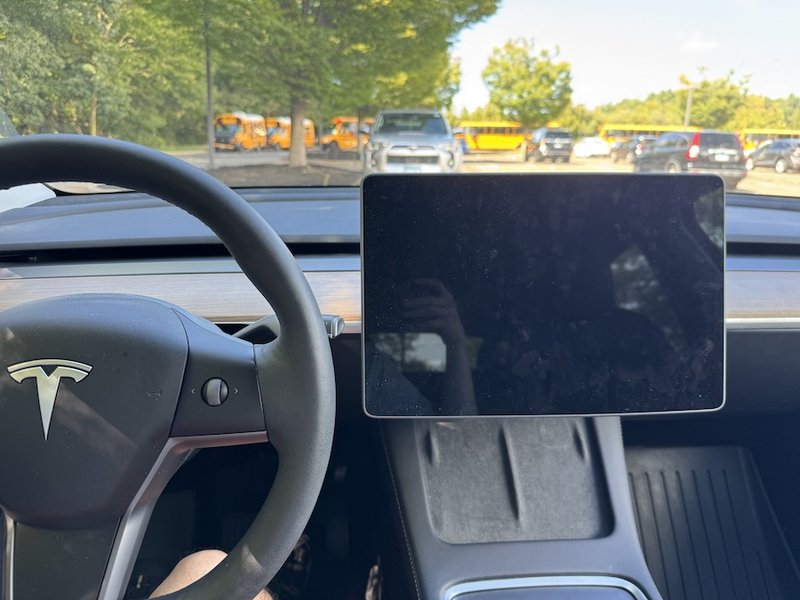
A Tesla touchscreen displaying a black screen, signaling a potential MCU issue.
Underlying Reasons for Tesla MCU Failures
-
Software Glitches and Bugs
The most common cause. Incomplete over-the-air (OTA) updates, software conflicts, or an application crash can lead to a frozen or black screen. Regular software updates are vital for stability.
-
eMMC Storage Chip Degradation (MCU1 Specific)
A significant issue for older MCU1 vehicles. The eMMC chip has a finite number of write cycles. Constant logging of data, particularly from features like Sentry Mode or Dashcam, can wear out the chip, leading to performance degradation, boot loops, and ultimately a black screen. Tesla has addressed this with service programs and extended warranties for affected vehicles in the US.
-
12V Battery Issues
The 12V auxiliary battery, which powers the vehicle's low-voltage systems including the MCU, can cause various electrical anomalies if it's weak or failing. A compromised 12V battery can lead to intermittent screen outages or system reboots.
-
Overheating or Extreme Temperatures
Prolonged exposure to extreme heat, particularly in sunny US states like Arizona or California, can stress MCU components, leading to temporary malfunctions or even hardware damage. Conversely, extreme cold can also affect electronic stability.
-
Peripheral Interference
Faulty USB devices, problematic Bluetooth connections, or other external accessories can sometimes interfere with the MCU's operation, causing crashes or unresponsiveness.
Your First Line of Defense: Soft Resetting Your Tesla Touchscreen
A soft reset is your simplest and safest troubleshooting step for a frozen or black screen. It's akin to restarting your personal computer and often resolves minor software glitches without affecting your settings or data. This is the primary how to restart Tesla touchscreen method.
Step-by-Step Soft Reset Procedure for All Tesla Models
- Ensure Safety: Shift your Tesla into Park (P). While a soft reset can technically be performed while driving, it's always recommended to do so safely when stationary.
- Locate Scroll Wheels: Identify the two scroll wheels on your steering wheel.
- Initiate Reset: Press and hold both scroll wheels simultaneously.
- Observe Screen: Continue holding the scroll wheels. The touchscreen will go completely black, typically within 10-20 seconds. For some stubborn issues, holding for up to a minute might be necessary, especially on older MCU1 units.
- Release and Wait: Once the screen is black, release both scroll wheels. The Tesla "T" logo will appear, indicating that the system is rebooting.
- System Reload: Allow approximately 30-60 seconds for the system to fully reload and the touchscreen to become fully operational again.
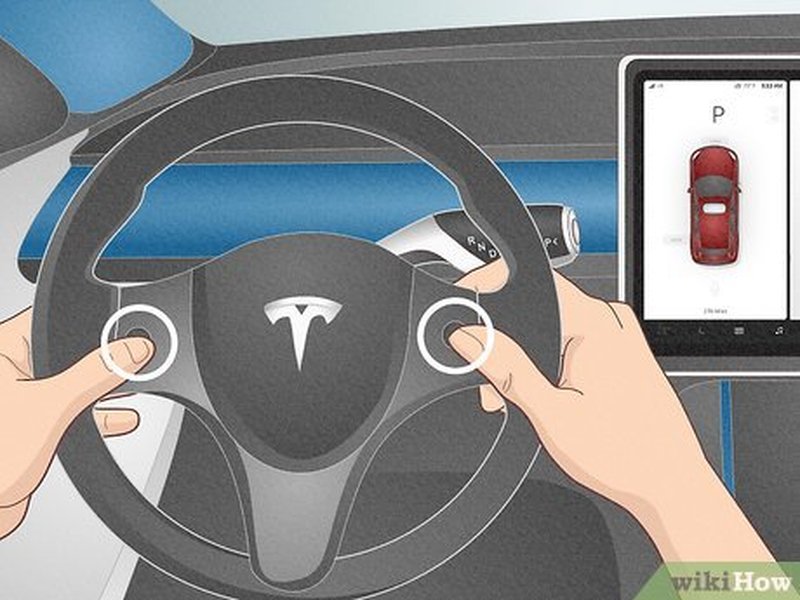
Illustration of a user holding both scroll wheels on a Tesla steering wheel to perform a soft reset.
MCU1 vs. MCU2 Reset Nuances
While the scroll wheel method is universal, there's a subtle difference in what gets reset based on your MCU generation:
-
MCU1 (Older Model S/X)
You can perform separate resets. Holding the scroll wheels reboots the main center screen. If your instrument cluster (the screen behind the steering wheel) is also acting up, you can try resetting it separately by pressing and holding both top buttons on the steering wheel (often voice command and next song buttons) for 15-30 seconds.
-
MCU2/MCU3 (Newer S/X, Model 3/Y)
The scroll wheel method typically initiates a simultaneous reboot of both the main touchscreen and the instrument cluster. This streamlined process is due to the more integrated architecture of the newer systems.
Additional Tips for Soft Reset Success
- Unplug Peripherals: If the screen remains unresponsive, remove any USB drives (especially those used for Sentry Mode or Dashcam) and disconnect all Bluetooth-paired devices from your phone, then retry the soft reset.
- Check Software Updates: If your screen is intermittently functional, try connecting to a reliable Wi-Fi network and navigate to the 'Software' section on your touchscreen to check for and install any pending updates. New Tesla software updates often include bug fixes.
When a Soft Reset Isn't Enough: Performing a Hard Reset (Power Cycle)
If a soft reset doesn't resolve the issue, a hard reset, or power cycle, is the next step. This procedure performs a more comprehensive shutdown and restart of the vehicle's computer systems. It's an essential Tesla touchscreen not working fix when basic reboots fail.
Step-by-Step Hard Reset via the Power Off Menu
This method is safer and recommended over manually disconnecting the 12V battery for most owners.
- Park Safely: Ensure your Tesla is in Park (P), all doors are closed, and the vehicle is not actively charging.
- Power Off Vehicle: If your touchscreen is partially functional, navigate to Controls > Safety & Security > Power Off. Confirm the action.
- Wait Patiently: Once the screen goes completely dark, it's crucial to sit still without touching any pedals, opening doors, or interacting with the screen for at least 2 to 3 minutes. This allows all vehicle systems to fully power down and discharge. Some recommend waiting up to 5 minutes for optimal results.
- Wake the Vehicle: After the waiting period, simply press the brake pedal to power the car back on. The Tesla logo will reappear, and the system will boot up.
- Final Check: Wait a few minutes for all systems to fully initialize before attempting to drive or use all features.
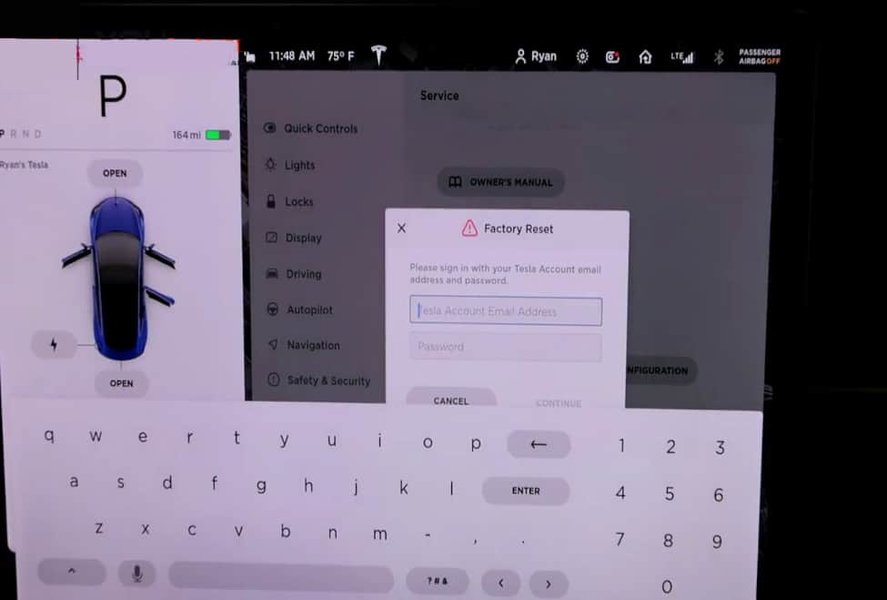
Screenshot showing the 'Power Off' option in Tesla's Safety & Security menu, illustrating the hard reset process.
The Notorious eMMC Chip Failure: A Problem for Older Model S/X (MCU1)
For owners of older Tesla Model S and Model X vehicles equipped with MCU1, persistent black screens, slow performance, and frequent reboots often point to a specific hardware vulnerability: the embedded MultiMediaCard (eMMC) storage chip. This is a critical factor for a reliable Tesla screen frozen solution.
Understanding the eMMC Weakness
The eMMC chip in MCU1 units was used for logging data, and like all flash memory, it has a finite number of write cycles. Over time, the constant writing and rewriting of data can wear out the chip, leading to:
- Frequent black screens and unresponsive touchscreens.
- Extremely slow boot-up times and overall sluggish system performance.
- Navigation system failures or maps not loading.
- Error messages related to memory or storage.
- Eventually, complete MCU failure.
This issue was so prevalent that the National Highway Traffic Safety Administration (NHTSA) opened an investigation, and Tesla eventually implemented a warranty adjustment program for affected vehicles, offering free replacements or discounted upgrades to MCU2.
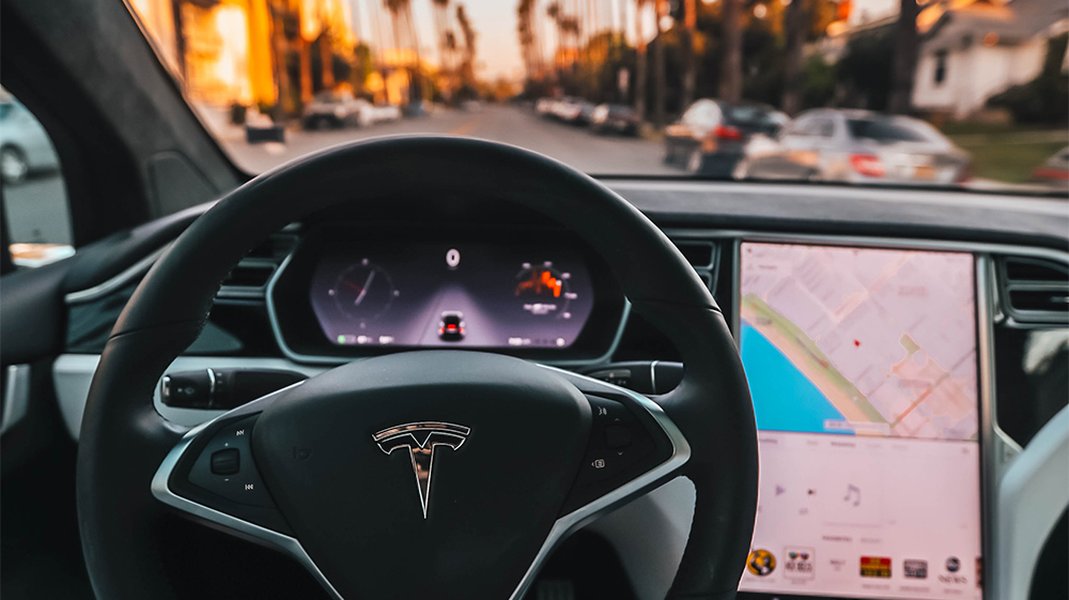
An illustration depicting the eMMC chip, notorious for failures in older Tesla MCU1 units.
Considering an MCU Upgrade: The MCU2 Retrofit Option
If you're an MCU1 owner experiencing recurring black screen issues or sluggish performance, upgrading to an MCU2 system (also known as the Infotainment Upgrade) can be a highly beneficial solution. This addresses the eMMC issue permanently and significantly enhances your Tesla experience.
Benefits of Upgrading from MCU1 to MCU2
- Resolved eMMC Issues: The MCU2 hardware utilizes more robust storage technology, eliminating the eMMC wear problem.
- Dramatic Performance Boost: Experience a much faster and more responsive touchscreen, smoother navigation, and quicker app loading times.
- Access to New Features: Enjoy features like Tesla Arcade, Caraoke, and a more modern web browser, which are often unavailable or perform poorly on MCU1.
- Improved Reliability: MCU2 systems are generally more stable and less prone to software glitches due to their superior hardware.
- Enhanced Connectivity: Often includes an upgrade to LTE connectivity if your MCU1 vehicle was still on 3G, ensuring better online services.
Repair Costs: DIY Resets vs. Service Center Options
Understanding the potential costs involved can help US Tesla owners make informed decisions when facing persistent black screen issues. The following table provides estimated costs for various solutions as of early 2026, which can vary based on your specific model, location, and whether your vehicle is under warranty.
| Solution | Description | Estimated Cost (USD) | Pros | Cons |
|---|---|---|---|---|
| Soft Reset (DIY) | Pressing steering wheel scroll wheels. | $0 | Free, quick, fixes many software glitches. | Only addresses software issues; temporary fix. |
| Hard Reset (DIY - Power Off Menu) | Using 'Power Off' menu option. | $0 | Free, more comprehensive than soft reset. | Only addresses software issues; temporary fix. |
| eMMC Repair (Independent Shop for MCU1) | Replacing the faulty eMMC chip on an MCU1 board. | $500 - $1,000 | Cheaper than full MCU replacement; resolves specific eMMC issue. | Not offered by Tesla; specific to MCU1; potential warranty impact. |
| MCU1 Replacement (Tesla Service) | Replacing a faulty MCU1 with another MCU1 unit. | $1,700 - $2,500 | Uses genuine Tesla parts; maintains originality. | Expensive; still susceptible to future eMMC failure. |
| MCU2 Upgrade (Tesla Service - from MCU1) | Upgrading an MCU1 vehicle to MCU2 hardware. | $2,000 - $3,000 | Significant performance boost; resolves eMMC; adds new features. | Higher initial cost than basic repair; availability can vary. |
| MCU2/3 Replacement (Tesla Service) | Replacing a faulty MCU2 or MCU3 unit. | $2,500 - $4,000+ | Restores full functionality with current hardware. | Very expensive; typically only needed for confirmed hardware failure. |
These figures are general estimates. For precise quotes, especially for a full MCU replacement or upgrade, always consult your local Tesla Service Center, easily accessible via the Tesla app for US owners.
Warning: Driving with a Non-Functional Touchscreen is Risky
While your Tesla is engineered to maintain basic driving functions even with a black screen, continuing to drive under such conditions is highly inadvisable and can be unsafe. The touchscreen provides critical information and controls that are essential for safe operation.
- Loss of Visual Information: You lose access to the speedometer, range estimates, warning messages, and critical vehicle alerts.
- Rearview Camera Absence: The rearview camera feed, vital for safe reversing and parking, will be unavailable.
- Navigation Impairment: You won't have access to maps or turn-by-turn directions, which is dangerous in unfamiliar areas.
- Climate Control Issues: Adjusting climate settings, including defrost and fan speed, becomes impossible, potentially affecting visibility and comfort.
- Autopilot/FSD Limitations: While core driving functions persist, the visual cues and interaction necessary for advanced driver-assistance systems are gone.
If your screen goes black while driving, remain calm, find a safe place to pull over immediately, and attempt a soft reset. If the screen doesn't return to functionality, contact Tesla Roadside Assistance, available nationwide across the US, or schedule a service appointment rather than continuing your journey without essential controls.
Preventative Measures: Keeping Your MCU Healthy
While hardware failures can occur, many black screen incidents are preventable. Implementing these practices can help prolong the life of your MCU and minimize software glitches, offering a proactive Tesla screen frozen solution.
- Stay Updated: Always ensure your Tesla is running the latest software version. Connect your vehicle to a reliable home Wi-Fi network regularly to receive Tesla OTA updates promptly. Updates often contain bug fixes and performance enhancements.
- Manage USB Devices: Avoid leaving large USB drives, especially those used for continuous recording like Sentry Mode or Dashcam, permanently connected. Regularly format these drives or use high-endurance memory to reduce wear on the eMMC chip in older models.
- Clear Navigation History: Periodically clear your navigation history and saved destinations to free up system memory and prevent potential database overload, particularly on MCU1 systems.
- Occasional Soft Resets: Performing a soft reset (scroll wheel method) once a month can be a good preventative measure to clear temporary memory and refresh the system, even if you're not experiencing issues.
- Avoid Extreme Temperatures: Whenever possible, park your Tesla in shaded areas or a garage during hot weather to prevent excessive heat buildup. In colder climates, preconditioning your cabin can also help prevent system shock.
- Address 12V Battery Warnings: Pay prompt attention to any warnings related to your 12V battery, as a failing battery can precipitate numerous electrical issues, including MCU malfunctions.
When to Contact Tesla Service
While many issues can be resolved at home, there are situations where professional intervention is necessary. Don't hesitate to contact Tesla Service if:
- Soft and hard resets fail to restore touchscreen functionality.
- Screen issues recur frequently despite your troubleshooting efforts.
- You experience additional electrical problems alongside the black screen.
- Your vehicle is still under warranty, as repairs might be covered.
- You're uncomfortable performing any of the DIY troubleshooting steps, especially those involving the 12V battery.
Tesla Mobile Service can often address many MCU issues at your home or workplace across major US metropolitan areas, offering a convenient solution.
FAQ: Tesla Black Screen and MCU Reset Questions
Conclusion: Empowering Tesla Owners with Troubleshooting Knowledge
A black or unresponsive Tesla screen can be a significant inconvenience, transforming your high-tech vehicle into a frustrating experience. However, armed with the right knowledge and troubleshooting steps, many US Tesla owners can effectively resolve these issues themselves. By understanding the causes, performing soft and hard resets, and recognizing when professional intervention or an MCU upgrade is necessary, you can maintain your Tesla's optimal functionality. Always prioritize safety and consult Tesla Service if persistent problems arise. This guide aims to be an evergreen resource, empowering you to keep your Tesla's digital heart beating strong.
