

Decoding Mach-E Software Updates: How They Work and Why They Fail
Ford's approach to OTA updates is designed to enhance the Mustang Mach-E continuously. These updates can be anything from minor tweaks to major feature additions. Unlike the immediate updates on your smartphone, your Mach-E's system follows a specific protocol:
- Updates are typically downloaded in the background while you drive, primarily utilizing the vehicle's cellular data connection.
- Installation usually occurs when the vehicle is parked and powered off, often requiring specific conditions to be met.
- Ford rolls out updates gradually, meaning not all vehicles receive them simultaneously.
While Ford strives for a seamless update experience, several factors can cause installations to fail. Identifying the underlying cause is the first step toward a successful resolution.
Common Reasons Behind Update Failures
When your Mach-E displays an "Update Failed" message, it's often due to specific unmet preconditions or other technical hitches. Here are the most frequent culprits:
Insufficient 12V Battery Charge
This is, by far, the most prevalent reason for update failures. Major updates, especially those termed "inhibit updates" (which temporarily render the vehicle inoperable during installation), demand a robust charge from the 12V accessory battery. This battery powers the vehicle's computer modules throughout the update process. If its charge level drops below a critical threshold (often 80-85%), the system aborts the update to prevent potential damage or "bricking" the vehicle.
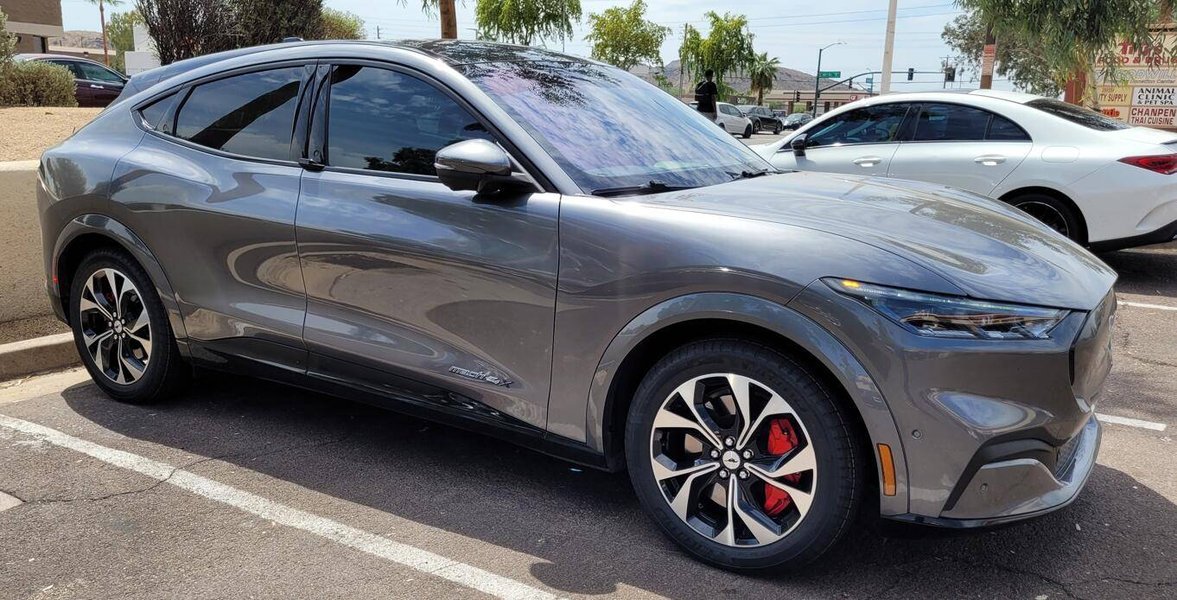
A healthy 12V battery is crucial for successful Mach-E software updates.
Unmet Vehicle Preconditions
Ford mandates several conditions that must be satisfied for a scheduled software update to commence. If any of these are not met, the update will either not start or fail midway. These include:
- The vehicle must be in "Park" (P) with the parking brake engaged.
- The ignition must be off.
- All doors, the hood, and the trunk must be securely closed.
- Hazard lights and headlights must be off.
- The vehicle's alarm must not be sounding.
- The high-voltage battery should be at least 80% charged (and not actively charging).
- No emergency calls should be in progress.
- The vehicle must not be in "limp home" mode.
Connectivity Issues (Wi-Fi or Cellular)
While your Mach-E can download smaller updates and map data over Wi-Fi, many critical and larger updates rely heavily on the vehicle's embedded cellular data connection. A weak, intermittent, or completely absent cellular or Wi-Fi signal can lead to incomplete downloads and subsequent installation failures. It's often observed that critical updates primarily download via the built-in AT&T cellular connection while the vehicle is being driven.
Corrupted or Incomplete Download Files
If the update files themselves become corrupted during download or are not fully transferred, the installation process will inevitably fail. This can stem from unstable internet connections or temporary glitches during the data transfer.
Stuck Modules or Cache Issues
Occasionally, a vehicle module can become "stuck" or unresponsive, thereby preventing further updates. Similar to a personal computer, the SYNC infotainment system's cache can become full or corrupted, leading to software update failures. The FordPass companion app can also experience synchronization glitches, showing an incorrect update status compared to the vehicle itself.
Recalls and Known Software Glitches
In some instances, update failures might be linked to broader, known issues or active recalls. Historically, Ford has addressed issues like door-latch defects and overheating battery contactors through software updates, and if a vehicle is affected by such a recall, it might prevent subsequent updates until the initial fix is applied, often by a dealer. Some early 2021 Mach-E models, for example, experienced issues with not receiving OTA updates due to internal blocks from Ford's system.
Your Troubleshooting Playbook: Step-by-Step Solutions
If your Ford Mach-E update has failed, take a deep breath. Most issues are resolvable with a methodical approach. Follow these steps, starting with the simplest solutions, to get your Mach-E updated.
Step 1: Prioritize the 12V Battery Check and Charge
As the most common culprit, ensuring your 12V battery is adequately charged is paramount. Here’s how to address it:
- Drive Your Mach-E: Take your vehicle for a drive of at least 30-60 minutes. This allows the vehicle's DC-DC converter to charge the 12V battery. Many owners report success after simply driving for an extended period before reattempting an update.
- Ensure Vehicle "ON" State: If you cannot drive, you can leave the Mach-E in the "ON" (Ready) state in a well-ventilated area for about 45 minutes. This also activates the DC-DC charger, replenishing the 12V battery.
- Use a Smart 12V Charger: If you have access to a quality smart 12V battery charger, connect it to the under-hood terminals to fully top off the 12V battery. Ensure the charger is designed for automotive use.
- Monitor 12V Status: While direct voltage readings aren't always available to the user, some FordPass accounts on ford.com might display rudimentary 12V battery status information.
- Retry Immediately: Once the 12V battery has been sufficiently charged, try initiating the update again promptly.
Step 2: Meticulously Verify All Update Preconditions
Before attempting another update, go through this detailed checklist to ensure all necessary conditions are met:
- Confirm the vehicle is in Park (P) with the parking brake engaged.
- The vehicle's ignition must be off.
- All doors, the hood, and the trunk must be securely closed.
- Ensure both hazard indicators and headlights are turned off.
- Confirm the vehicle's alarm is not currently sounding.
- Your Mach-E must NOT be actively charging during the update installation. Unplug the charging cable.
- There should be no emergency call in progress.
- The vehicle should not be in "limp home" mode.
- The high-voltage battery must be charged to at least 80%.
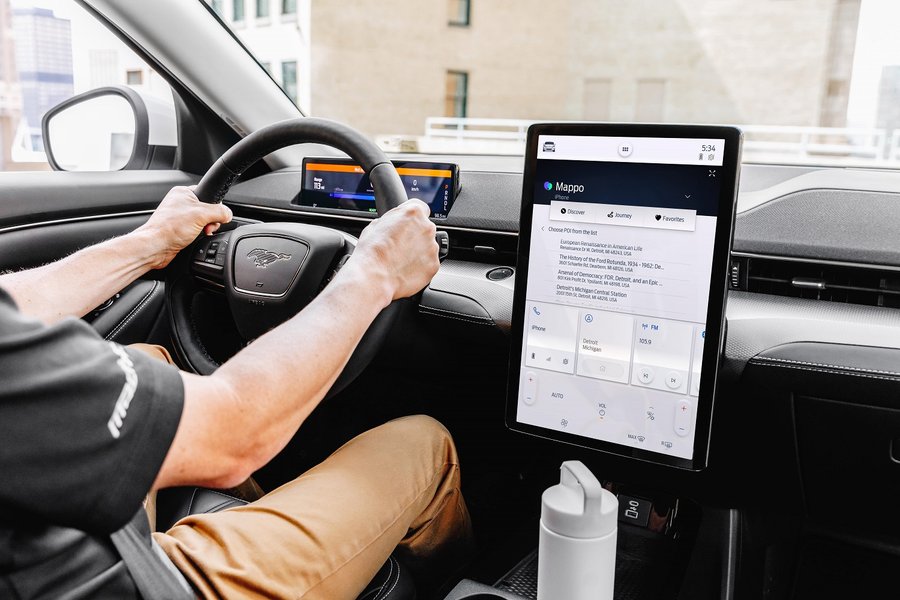
The Mach-E's large infotainment screen provides status updates during the process.
Step 3: Address Connectivity and Software Glitches
Issues with network connectivity or the vehicle's software can also prevent updates from completing. Here’s what to check:
- Improve Signal Strength: If possible, park your Mach-E in an area known for strong cellular signal (for OTA downloads) or close to your home Wi-Fi network if the update can utilize Wi-Fi. Many critical updates are downloaded via cellular, so regular driving is important for this.
- Force Quit/Restart FordPass App: If you're managing updates or notifications through the FordPass app, completely close it and reopen it. Logging out and back into your account can also help clear any temporary glitches. If status discrepancies persist, consider uninstalling and reinstalling the FordPass app to clear its cached data.
- Perform a SYNC Master Reset: If your infotainment screen is acting erratically, freezing, or if software updates consistently fail, a master reset of the SYNC system can often resolve underlying software hang-ups. Navigate to Settings > General > Reset > Master Reset on your infotainment screen. Be aware that this will erase personal data and settings, requiring you to re-pair your phone and reconfigure preferences.
- Reboot SYNC (Soft Reset): For a less drastic reset, hold the volume down button and the right-seek button on the steering wheel simultaneously for about 10 seconds until the screen reboots. This can fix minor glitches without erasing data.
- Check for Error Messages: Pay close attention to any specific error messages displayed on your Mach-E's screen or within the FordPass app. These messages can offer vital clues about the root cause of the problem.
Step 4: Consider Manual Update Initiation and 12V Accessories
Sometimes, simply re-initiating the process or minimizing electrical draw can make a difference:
- Try "Update Now": If an update was scheduled and failed, go to Settings > Software Updates in your Mach-E and select "Update Now" if the option is available. Ensure all preconditions are met before doing so.
- Remove 12V Drains: Unplug any non-essential accessories that draw power from the 12V sockets, such as dash cams, OBD dongles, portable coolers, or phone chargers, before attempting an update. Set your light switch to OFF (not Auto) to prevent unintended power draw.
When to Seek Professional Help: Your Ford Dealer and Beyond
If you've diligently followed all the troubleshooting steps and your Mach-E still refuses to update, it's time to involve the experts. Here's when dealer intervention becomes necessary:
Persistent Update Failures
- If updates fail three or more times despite meeting all preconditions and ensuring a fully charged 12V battery.
- If your FordPass app and the in-vehicle update status consistently disagree for several days, indicating a severe synchronization issue.
Specific Diagnostic or Hardware Issues
- The vehicle displays specific error messages related to internal modules after a failed install.
- Your Mach-E has not received any OTA updates for many months, while other similar VINs (Vehicle Identification Numbers) are known to be receiving them. This can indicate a "stuck" module or an outdated gateway that prevents the vehicle from entering the OTA queue.
- If the vehicle becomes "bricked" (rendered undrivable) after a failed update. This is rare but requires immediate dealer assistance.
- If you suspect a faulty 12V battery that isn't holding a charge, even after external charging efforts.
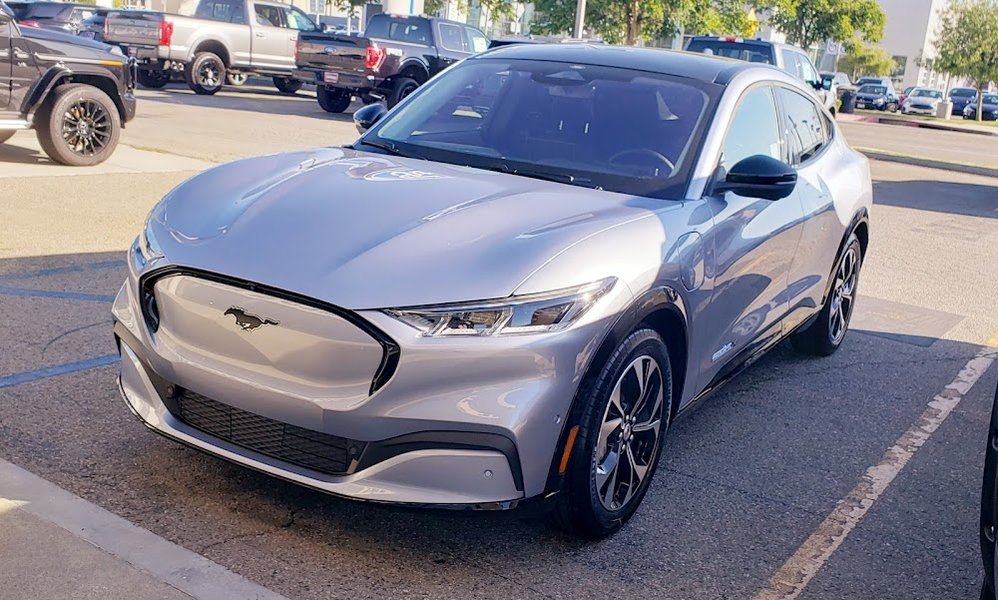
A Ford EV-certified dealer can utilize specialized diagnostic tools to force updates.
How the Dealership Can Help
Ford EV-certified dealerships possess specialized diagnostic tools, such as the Ford Diagnostic and Repair System (FDRS), which allows them to:
- Force Updates: They can manually push and install all pending updates onto your vehicle, bypassing the OTA system. This is especially helpful for older models or those with persistent OTA blocks.
- Diagnose Underlying Issues: Technicians can perform in-depth diagnostics to identify root causes like faulty modules, gateway issues, or underlying hardware problems contributing to update failures.
- Address Recalls: If a software update failure is linked to an active recall, the dealership can apply the necessary fixes and ensure the vehicle is compliant.
If your vehicle becomes undrivable after a failed update, contact Ford Roadside Assistance immediately. It's also wise to ensure the towing company is aware they are towing a Mach-E, as proper procedures for electric vehicles differ from traditional internal combustion engine vehicles.
Proactive Measures: Preventing Future Update Problems
Once you've successfully resolved your current update issues, adopting a few best practices can significantly reduce the likelihood of future problems. Proactive care ensures your Mach-E remains current and operates optimally.
Maintaining Optimal 12V Battery Health
Since the 12V battery is a critical component for updates, keeping it healthy is paramount:
- Drive Regularly: Regular driving helps keep the 12V battery charged by allowing the vehicle's DC-DC converter to replenish it.
- Consider a Smart Charger for Infrequent Drivers: If you typically take short trips or drive infrequently, periodically connecting a smart 12V charger to the under-hood terminals can ensure the battery remains robust.
Smart Update Scheduling and Environment
Optimize the conditions for updates to run smoothly:
- Scheduled Updates: Whenever possible, schedule updates for times when your vehicle will be parked for an extended, uninterrupted period, such as overnight. This increases the chances of meeting all preconditions.
- Optimal Parking Location: Park your Mach-E in an area with strong cellular signal for downloads. While Wi-Fi can assist, the primary download mechanism for major updates is cellular. Avoid metal-roof carports or garages that might block signals.
- Unplug Charging Cable: Always ensure the charging cable is unplugged before an update installation is set to occur, as the vehicle cannot update while actively charging.
Connectivity and App Management
- Strong Connectivity: While driving, ensure good cellular coverage for essential update downloads. At home, connect to a reliable Wi-Fi network for supplementary downloads or smaller packages.
- Keep FordPass Updated: Regularly update the FordPass app on your smartphone to ensure it's functioning correctly and communicating effectively with your vehicle. Log out and back in periodically to refresh its status.
- Allow the Car to Sleep: Avoid constantly waking your car with the app. Letting the vehicle's modules enter sleep mode can help clear temporary issues and prepare it for updates.
Monitoring and Awareness
- Stay Informed: Keep an eye on community forums (like MachEforum.com) and official Ford communications for news about specific updates and any known issues. Learning from others' experiences can be highly beneficial.
- Don't Ignore Small Updates: Install all available updates promptly. Staying current with smaller patches can prevent conflicts or issues when larger, more complex updates are released.
- Confirm Success: After an update appears to succeed, start the car once and let it run for a few minutes. This allows the vehicle to report success back to Ford's servers, which can then queue the next sequence of updates for your vehicle.
Understanding Update Types and Features Like BlueCruise
Not all Mach-E updates are created equal. Understanding the different types helps manage expectations and troubleshooting.
Varieties of Updates
- Background Updates: These are typically smaller improvements or bug fixes that install while you drive and usually don't require any action from you.
- Scheduled Updates: These are larger updates affecting multiple systems, requiring your vehicle to be parked and off for installation.
- Inhibit Updates: These are the most complex. They demand specific conditions and render your vehicle temporarily unusable during installation. A well-charged 12V battery is particularly critical for these.
Focus on BlueCruise Updates
BlueCruise updates, such as BlueCruise 1.3, bring significant enhancements like Lane Change Assist, In-Lane Repositioning, and improved hands-free driving capabilities. These are often substantial updates that require careful attention to 12V battery charge and all other preconditions. If BlueCruise stops working or exhibits glitches after an update, especially if accompanied by camera module diagnostic trouble codes, a diagnostic scan at the dealership may be necessary.
Frequently Asked Questions About Ford Mach-E Updates
Conclusion: Empowering Your Mach-E's Evolution
Dealing with "Software Update Failed" messages on your Ford Mustang Mach-E can undoubtedly be a source of frustration, but as this guide illustrates, most issues are resolvable with a systematic and patient approach. The key lies in understanding the vehicle's update process and methodically addressing the most common culprits, primarily the 12V battery charge and unmet preconditions.
Remember that Over-the-Air updates are a relatively new frontier for traditional automakers, and Ford continuously refines its process with each software iteration. What might seem like a significant problem today often has a straightforward solution or will be addressed in a future update. By taking a proactive stance—driving regularly to maintain 12V battery health, ensuring stable connectivity, and verifying all preconditions—you can prevent many update issues before they even begin.
If, despite all your efforts, your Mach-E continues to experience persistent update failures, do not hesitate to contact Ford's dedicated OTA support or schedule a visit to a Ford EV-certified dealership. They have the specialized diagnostic tools and expertise to resolve more complex underlying issues, ensuring your Mach-E receives all the latest features and improvements that Ford has to offer.
