

Solve persistent car Bluetooth pairing issues across all modern vehicles and smartphones with these universal troubleshooting steps.
Key Takeaways for a Flawless Bluetooth Connection
- The Power of "Forget and Re-pair": The most effective first step for nearly all Bluetooth woes is to delete the pairing from both your phone and your car, then perform a fresh re-pairing.
- Software Updates are Crucial: Keep both your smartphone's operating system (iOS or Android) and your car's infotainment firmware up-to-date to ensure compatibility and resolve bugs.
- Hardware vs. Software: If all software-based troubleshooting fails, consistent issues like no device detection or constant disconnections may indicate a hardware problem requiring professional dealership service.
Frustration mounts when your phone refuses to connect to your car's Bluetooth system, turning a simple commute into a battle with technology. Whether you're trying to stream music, make hands-free calls, or use navigation, a reliable Bluetooth connection is essential for modern drivers. This comprehensive guide provides universal steps to address the most common car Bluetooth connection fix issues, covering everything from basic restarts to understanding when a professional intervention might be needed. We'll help you navigate the complexities of connecting your iPhone 15 or Samsung Galaxy to your Toyota, Ford, Honda, Chevrolet, Hyundai, BMW, or Tesla.
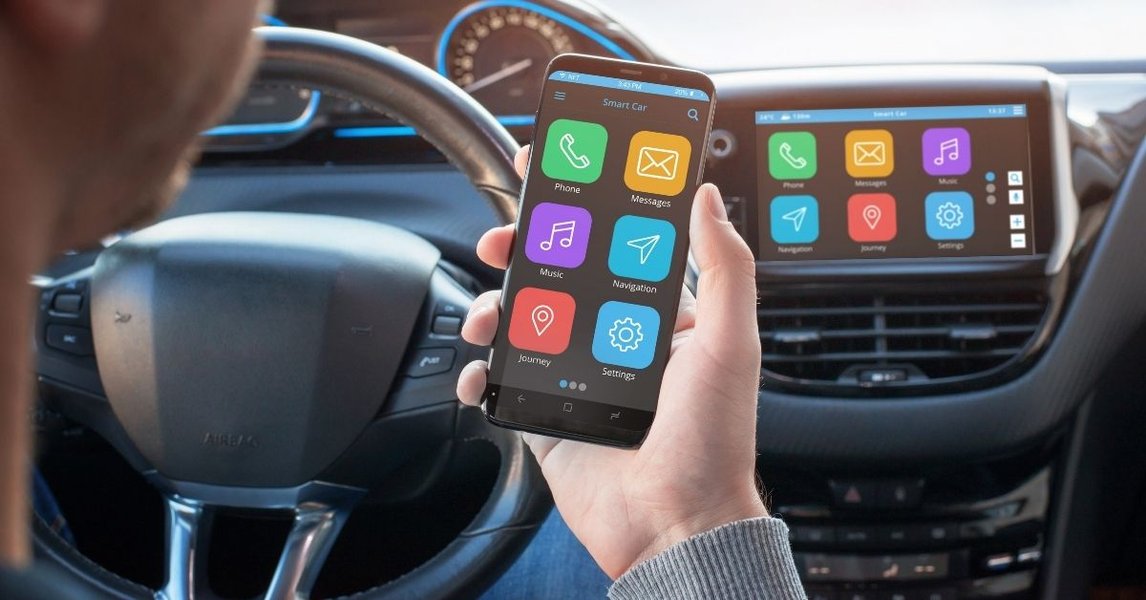
A seamless Bluetooth connection enhances your driving experience.
Why Won't My Phone Connect to My Car Bluetooth? Understanding Common Causes
Before diving into solutions, it's beneficial to understand why your car Bluetooth connection might be failing. Many issues are rooted in common digital "cobwebs" or configuration conflicts rather than serious malfunctions. Identifying the root cause can streamline your troubleshooting process.
The Usual Suspects Behind Connection Failures
- Outdated Software: Both your phone's operating system (OS) and your car's infotainment system rely on software. Older versions can lead to compatibility issues, especially with newer Bluetooth standards or phone models like the iPhone 15.
- Interference: Bluetooth operates on the 2.4 GHz frequency band, making it susceptible to interference from other wireless devices such as Wi-Fi hotspots, other phones in the car, or even some low-quality USB chargers.
- Improper Pairing Mode: One or both devices (your phone and the car) might not be in the correct "pairing mode" or "discoverable mode," preventing them from establishing an initial connection. Pairing windows are often short, requiring quick action.
- Full or Stale Device Lists: Car infotainment systems have a limited memory for paired devices. If this list is full of old phones, accessories, or rental cars, it might refuse new connections. Similarly, your phone's Bluetooth history can become cluttered.
- Incorrect Settings or Permissions: Settings on your phone, such as disabled "Phone audio" (HFP for calls) or "Media audio" (A2DP for music streaming) profiles, or aggressive battery-saving modes, can hinder a stable connection or prevent certain functions from working.
- Corrupted Bluetooth Cache: Like any electronic device, temporary software glitches or corrupted Bluetooth cache data can prevent proper communication. Clearing this cache is often a simple yet effective car Bluetooth connection fix.
- Phone or Car Compatibility Issues: While less common with modern systems, some older car models might have limited compatibility with newer Bluetooth versions on contemporary smartphones.
How to Fix Car Bluetooth Pairing Issues: A Universal Step-by-Step Guide
This section outlines a comprehensive, universal troubleshooting process that applies to most vehicles and smartphones, whether you're using an iPhone or an Android device. Follow these steps sequentially, checking for a resolution after each one.
Step 1: The Essential First Steps – Restart and Basic Checks
Often, the simplest solutions are the most effective. Think of these as giving your devices a quick refresh.
Toggle Bluetooth On/Off
- On both your phone and your car's infotainment system, turn Bluetooth off. Wait about 10-15 seconds, and then turn it back on.
Restart Both Devices
- Smartphone: Completely power off your phone, then turn it back on. This clears out temporary software glitches.
- Car Infotainment: Turn off your car's ignition. For a more complete infotainment reset, open and close the driver's door (this can help power down the system), wait for at least 30 seconds, then restart the car.
Ensure Discoverable Mode
- Make sure your car's Bluetooth is set to "discoverable" or "pairing mode" through its infotainment settings. Simultaneously, keep your phone's Bluetooth settings screen open, making it visible to other devices.
Check Proximity
- Keep your phone physically close to your car's infotainment system during the pairing process to minimize signal loss and potential interference. Avoid placing your phone in the glove compartment or center console during pairing.
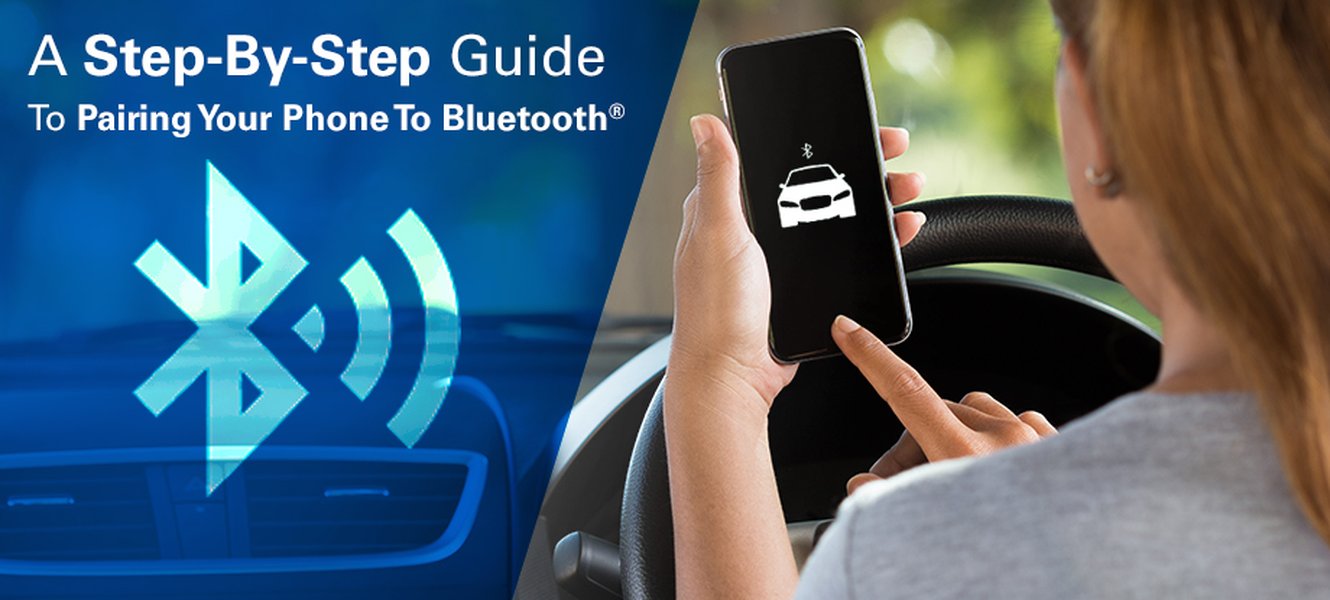
Ensuring your car is in pairing mode is a critical initial step.
Step 2: Clear Cache and Forget/Re-pair Devices
This is often the most critical step for resolving persistent car Bluetooth pairing issues. It clears out old, potentially corrupted pairing data and allows for a fresh, clean connection.
Forget Device on Your Phone (iPhone & Android)
It's crucial to remove the car from your phone's memory before attempting to re-pair.
- For iPhone (e.g., iPhone 15):
- Go to Settings > Bluetooth.
- Find your car's name in the list of "My Devices."
- Tap the "i" (information) icon next to your car's name.
- Select "Forget This Device" and confirm.
- For Android (e.g., Samsung Galaxy):
- Go to Settings > Connected devices > Bluetooth. (Paths may vary slightly by Android version and manufacturer, e.g., Settings > System > Advanced > Reset options > Reset Wi-Fi, mobile, & Bluetooth or Settings > Connected devices > Saved devices).
- Find your car's name in the list of paired devices.
- Tap the gear icon or "Settings" next to your car's name.
- Select "Forget" or "Unpair" and confirm.
Delete Phone from Your Car's Memory
Equally important is removing your phone from the car's list of paired devices. Consult your car's owner's manual for the exact steps, as this varies by make and model. Generally, you will:
- Navigate to the Bluetooth settings menu on your car's infotainment screen.
- Find a list of paired devices (often labeled "Paired Devices," "Connected Devices," or "Device List").
- Select your phone's name and choose to "Delete," "Forget," or "Remove" the device.
- It's a good practice to delete any other old or unused devices from the car's memory, as a full list can prevent new pairings.
Re-Pairing Your Phone and Car
Once both devices have "forgotten" each other, perform a fresh pairing:
- Ensure your car is parked safely with the ignition on.
- On your car's infotainment system, navigate to the Bluetooth menu and select "Add New Device" or "Pair Device." This puts the car in discoverable mode.
- On your phone, go to Settings > Bluetooth and ensure Bluetooth is on. Your car's name should appear in the list of available devices.
- Tap on your car's name on your phone to initiate pairing.
- Confirm any PIN codes that appear on both your phone and car screen (common PINs include 0000 or 1234).
- Follow any on-screen prompts to grant necessary permissions, such as access to contacts (HFP) and media audio (A2DP).
Step 3: Address Interference and Connectivity Settings
Sometimes, the issue isn't about initial pairing but about maintaining a stable connection or enabling specific functions after pairing.
Minimize Interference
- Turn off Bluetooth on any other unused devices in the car (e.g., secondary phones, smartwatches).
- If you use a mobile Wi-Fi hotspot, try turning it off temporarily during pairing and while testing connectivity, as it shares the same 2.4 GHz frequency band.
- Keep your phone in an optimal position for signal strength, ideally on the dashboard or a phone mount, rather than buried in the glove compartment or a deep console.
Verify Audio Profiles (A2DP and HFP)
- After successful pairing, go back into your phone's Bluetooth settings for your car. Ensure "Phone audio" (for calls via HFP) and "Media audio" (for music streaming via A2DP) are both enabled. For some Android phones, you might find this under a gear icon or a three-dot menu next to the car's name.
Disable Battery Saver/Optimization
- Aggressive battery-saving modes on your phone (especially Android) can sometimes restrict background Bluetooth processes, leading to disconnections or poor performance. Temporarily disable these settings if you experience disconnects or poor audio quality. Exclude Bluetooth and any car companion apps from battery optimization.
Check "Auto-Connect" Settings
- Many infotainment systems allow you to prioritize a device or enable auto-connect. Ensure your phone is set as the primary device if multiple phones are commonly used in the vehicle.
Brand-Specific Troubleshooting for US-Market Cars (2026 Models)
While the universal steps cover most scenarios, some US car brands have specific nuances in their infotainment systems. Always consult your car's owner's manual for precise instructions, but here are some common tips for popular brands.
Toyota and Honda (e.g., Toyota Camry 2026, Honda Civic 2026)
Both Toyota and Honda vehicles often feature intuitive infotainment systems, such as Toyota's Entune or HondaLink. If you're facing a car Bluetooth not connecting fix 2026 issue:
- System Reset: If a soft reset (turning the car off and on) doesn't work, some models allow a full infotainment system reset through the settings menu, often labeled "Factory Reset" or "Restore Defaults." This will erase all saved settings, so use it as a last resort before a dealership visit.
- Check for Updates: Regularly check for software updates for your car's infotainment system. These can often be installed via USB or, in newer models, over-the-air (OTA) updates. American dealerships can perform these updates, typically costing $75–$150 if not covered under warranty.
Ford (e.g., Ford F-150 2026, Ford Escape 2026 with SYNC)
Ford's SYNC system is widely used across their lineup. If your phone isn't connecting to SYNC:
- SYNC Master Reset: Navigate to the SYNC menu, usually under "Settings" or "Phone." Look for an option to "Master Reset" or "Clear All Paired Devices." This is akin to a factory reset for the SYNC system.
- Unpair from Both: Ensure you "Unpair" or "Delete" your phone from the SYNC system and "Forget This Device" from your phone's Bluetooth settings.
- Toggle Bluetooth in SYNC: Sometimes, simply turning Bluetooth off and on within the SYNC system itself can resolve minor glitches.
- Updates: Update SYNC via Wi-Fi/USB or at a Ford dealership. Ensure “Phone” and “Audio” are enabled per device in SYNC’s Bluetooth menu.
Chevrolet and Hyundai (e.g., Chevrolet Silverado EV, Hyundai IONIQ 5)
Newer Chevrolet and Hyundai models often feature advanced infotainment systems like MyLink or Blue Link. For these:
- Full System Reboot: For persistent issues, a complete system reboot of the infotainment can sometimes be done by holding down the power button for 10-15 seconds until the screen turns off and restarts.
- Check Active Devices: Some systems only allow one active Bluetooth connection at a time. Ensure no other phone or device is currently connected and monopolizing the Bluetooth.
- Software Updates: Ensure both your phone OS and the vehicle's infotainment software are fully updated. GM updates may arrive OTA; Hyundai offers update tools via their app or dealership service.
BMW (e.g., BMW X3 2026, BMW 5 Series 2026 with iDrive)
BMW's iDrive system can be particular about connections. Troubleshooting often involves specific menu navigation:
- Delete Mobile Device: In iDrive, go to "Communication" > "Manage mobile devices." Select your phone and choose "Delete device."
- iDrive Reset: Some users report success with a "70s reset" for the iDrive system (holding down the volume button for a specific duration), though the exact method can vary by model year. Consult a BMW forum or your manual.
- Compatibility List: BMW often maintains a detailed compatibility list on its website. Check if your specific phone model and OS version are listed as fully compatible. BMW dealerships may charge around $150 for software updates if needed.
Tesla (e.g., Tesla Model 3)
Tesla vehicles, with their frequent over-the-air updates, can sometimes have unique Bluetooth behaviors:
- Phone Key Interference: The Tesla Phone Key function can sometimes interfere with initial Bluetooth pairing for calls/media. Complete the Phone Key setup first, then pair for calls/media.
- Remove Other Paired Phones: Remove other paired phones under Bluetooth settings to prevent auto-switching or connection conflicts.
- Latest Vehicle Software: Always ensure your Tesla's vehicle software is updated to the latest version, as these updates often include Bluetooth stack improvements.
- Reset: Access the car icon > Software > Bluetooth > Reset.
"Nine out of ten pairing issues disappear after a true clean re-pair: remove devices on both sides, reboot, then pair within the car’s active discoverable window."
When Your Car Bluetooth Keeps Disconnecting: Advanced Troubleshooting
If your car Bluetooth keeps disconnecting, even after basic resets, it might be a more advanced issue requiring further investigation. These persistent drops are often linked to interference, power management, or subtle software conflicts.
Software Updates: The Digital Cure
One of the most overlooked solutions for "why won't my phone connect to my car Bluetooth" and persistent disconnections is ensuring all software is current.
- Phone OS Updates: Always keep your phone's operating system (e.g., iOS on iPhone 15, latest Android on Samsung Galaxy) updated. These updates frequently include Bluetooth stack improvements, security patches, and bug fixes that can prevent disconnections.
- Car Infotainment Firmware: Your car's infotainment system also has firmware. Check your car manufacturer's website or your owner's manual for instructions on how to check for and install updates. Dealerships in the US can often perform these updates, though there might be a cost involved (typically $100-$300) if not covered under warranty. Ask about any Technical Service Bulletins (TSBs) related to Bluetooth stability for your specific model.
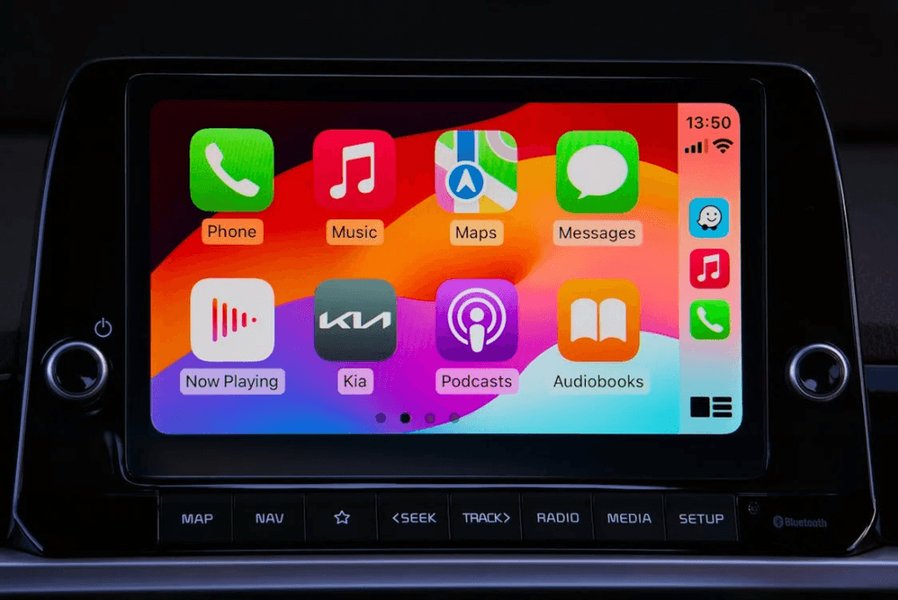
Regular software updates for your car's infotainment system can prevent Bluetooth issues.
Addressing Bluetooth Audio Quality Issues
Sometimes, connectivity works, but the audio is poor (skipping, distorted, or delayed). This can be a separate issue from pairing failures.
- Interference: As mentioned, other devices, poor signal, or even a cheap phone charger can cause audio degradation. Try moving your phone or disconnecting other non-essential accessories. Quality charging cables can reduce RF noise.
- Bluetooth Profiles: Ensure the correct Bluetooth audio profile (A2DP for high-quality stereo audio) is active. In your phone's Bluetooth settings for your car, verify that "Media audio" is enabled.
- Equalizer and Balance: Check your car's audio settings. Ensure the equalizer is not set to extreme values and that fader/balance settings are correct. Differentiate between call volume (HFP) and media volume (A2DP).
- Android Tweaks: For some Android users, disabling "Absolute Volume" in Developer Options might help if volume steps are erratic or sound is too low/high.
- Phone Hardware: If other phones work fine with your car, but yours doesn't, your phone's Bluetooth module might be faulty.
Comparison Table: Common Bluetooth Issues & Best Fixes
To provide a quick reference for common Bluetooth problems and their most effective solutions, consult the table below.
| Issue Symptom | Likely Cause(s) | Quick Fixes | Applies To |
|---|---|---|---|
| Phone not appearing in car's list / Pairing fails | Car not in pairing mode, full device list, corrupted cache. | Restart both devices, ensure pairing mode, clear old devices, clear phone's Bluetooth cache/network settings. | All Brands, iPhone/Android |
| Paired but no audio/calls (music works, calls don't) | Incorrect audio profiles (HFP), permissions not granted. | Check phone's Bluetooth settings for "Phone audio" enabled, allow contacts/permissions during pairing. | All Brands, iPhone/Android |
| Paired but no audio/calls (calls work, music doesn't) | Incorrect audio profiles (A2DP), wrong source selected. | Check phone's Bluetooth settings for "Media audio" enabled, ensure car stereo input is set to Bluetooth. | All Brands, iPhone/Android |
| Frequent disconnections / Car Bluetooth keeps disconnecting | Interference, outdated software, battery saver, weak signal. | Minimize interference, update software (phone & car), disable battery saver/optimization for Bluetooth. | Ford, Honda, Tesla, BMW, Chevrolet, Hyundai, Toyota |
| Slow to connect after startup | Software glitch, firmware issues, competing devices, full device list. | Forget/re-pair, update firmware, set phone as priority in car, clear old devices. | All Brands, iPhone/Android |
| Car asks for PIN but phone doesn't prompt | Mismatch in pairing protocol, phone OS issue. | Cancel and retry, try common PINs (0000, 1234), update phone OS. | All Brands, iPhone/Android |
When to Seek Professional Help: Hardware Problems
If you've exhausted all troubleshooting steps and still can't get a reliable car Bluetooth connection to work, it might indicate a hardware issue. This is when a dealership visit becomes necessary, as consumer-level diagnostics are often insufficient for hardware faults.
- Bluetooth Module Failure: The dedicated Bluetooth module within your car's head unit can sometimes fail. This typically requires professional diagnosis and replacement.
- Antenna Issues: A damaged, disconnected, or internally faulty Bluetooth antenna in the car can lead to weak signals, intermittent connectivity, or a complete inability to detect devices.
- Dealership Diagnosis: When visiting a dealership, explain all the steps you've already taken. They have specialized diagnostic tools to pinpoint internal hardware faults or complex software errors that a consumer cannot fix. In the US, diagnosis typically runs $100-$150. Module and antenna replacements can range from $200-$500 or more, depending on the car brand and complexity.
- Testing with Another Phone: A good indicator that the issue is with your car, not your phone, is if multiple different phones consistently fail to connect or exhibit the same problems with your vehicle's Bluetooth system. Conversely, if your phone struggles only with your car but connects fine to other Bluetooth devices, the car is likely the culprit.
Preventing Future Bluetooth Pairing Issues
Proactive maintenance and good habits can save you a lot of hassle and keep your car Bluetooth connection reliable.
- Regular Updates: Make it a habit to keep both your phone's operating system and your car's infotainment system updated to their latest versions. Set reminders for quarterly checks.
- Declutter Paired Devices: Periodically clear out old or unused devices from both your phone and car's Bluetooth memory. This prevents the device lists from becoming full and reduces potential conflicts.
- Avoid Interference: Be mindful of other electronic devices in your car that might interfere with the Bluetooth signal. Turn off Bluetooth on secondary phones or other unused gadgets.
- Proper Pairing Sequence: Always follow the correct pairing steps: put the car in pairing mode first, then scan from your phone, and confirm any PINs or permissions promptly.
- Use Quality Accessories: Cheap USB chargers or auxiliary devices can sometimes introduce electrical noise that interferes with Bluetooth signals. Invest in quality accessories.
- Limit Simultaneous Connections: Try to avoid having too many Bluetooth devices attempting to connect to your car at once, especially during startup. Set your primary phone as the preferred device.
"Bluetooth should be simple, but it often refuses to play nice when all you want is music or a clear call. If that sounds familiar, these proven steps often get your car and phone talking again smoothly."
Frequently Asked Questions about Car Bluetooth Connection Fix
Conclusion: Regain Your Seamless Car Connectivity
Encountering Bluetooth pairing issues in your modern car can be incredibly frustrating, but as this guide illustrates, most problems have straightforward solutions. By systematically working through the universal troubleshooting steps – from simple restarts and toggling Bluetooth, to the critical process of forgetting and re-pairing devices on both your phone and car – you can resolve the majority of connectivity woes. Keeping both your smartphone and vehicle infotainment system updated is paramount for ongoing compatibility and performance.
Remember to consider potential interference, verify audio profiles, and address battery optimization settings for stable connections. While most issues are software-based and user-fixable, persistent problems across multiple devices might signal a hardware fault, indicating it's time for a professional diagnosis at a dealership. By taking a proactive approach and understanding these solutions, you can ensure your car Bluetooth connection remains reliable, keeping you connected and entertained on the road.
