

Key Insights for a Smooth Infotainment Experience
- Soft Resets are Your First Line of Defense: Most common freezing and lagging issues can be resolved by holding down the system's power or volume button for 10-30 seconds, much like restarting a smartphone.
- Connectivity and Software are Frequent Culprits: Outdated software, too many simultaneous applications, or issues with connected devices (like phones or USB drives) are primary reasons for system unresponsiveness.
- Prevention is Key: Regular software updates, managing connected devices, and protecting your system from extreme temperatures can significantly reduce the likelihood of future freezes.
Modern vehicles are increasingly becoming sophisticated digital environments, with infotainment systems serving as the command center for navigation, entertainment, communication, and even critical vehicle settings. While these systems offer unparalleled convenience and connectivity, they are, at their core, complex computers. Like any computer, they can sometimes encounter glitches, lag, or completely freeze, leaving drivers frustrated and disconnected. When your car's digital brain goes blank or becomes unresponsive, it can disrupt your travel plans and even impact safety.
The good news is that many common infotainment system issues, especially freezing, are often temporary and can be resolved with simple troubleshooting steps, most notably a Car Infotainment System Reset. This comprehensive guide will walk you through the primary causes of these frustrating freezes and provide you with a universal, step-by-step approach to get your system back on track, often without needing a costly trip to the dealership.
Unpacking the "Why": Common Causes of Infotainment System Freezing
Understanding why your car's infotainment system might freeze is the first step toward effectively troubleshooting and preventing future occurrences. These systems operate in a challenging automotive environment, contending with vibrations, temperature fluctuations, and constant power demands. Here's a breakdown of the most common reasons for system unresponsiveness:
Software Glitches and Outdated Firmware
Just like your smartphone or home computer, infotainment systems run on software. Over time, minor bugs can develop, leading to conflicts, memory leaks, or general instability that can cause the system to freeze or become sluggish. If your system hasn't received recent software updates, it might be running on outdated firmware that lacks critical bug fixes and performance enhancements. Manufacturers frequently release updates to improve system stability, add new features, and patch security vulnerabilities. Skipping these updates can leave your system more prone to freezing.
Furthermore, an incomplete or corrupted software update can render the system partially or entirely inoperable, leading to a persistent frozen state.
Memory Overload and Resource Exhaustion
Infotainment systems have finite processing power and memory. Running multiple applications simultaneously—such as navigation, music streaming, phone calls, and climate control adjustments—can overwhelm the system, especially in older models with less robust hardware. This is akin to opening too many browser tabs on a computer, causing it to slow down or crash. Corrupted files or a build-up of temporary cache data can also consume valuable memory, leading to performance degradation and eventual freezing.
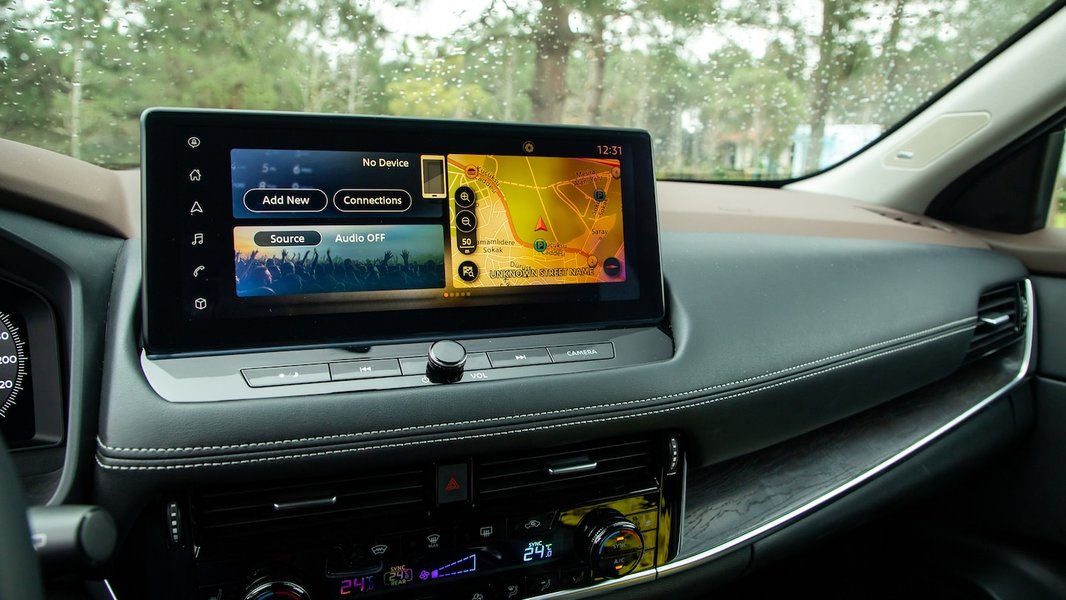
Modern infotainment systems blend navigation, entertainment, and vehicle controls into one central display.
Connectivity Issues
Many infotainment systems heavily rely on external connections, particularly with smartphones for features like Apple CarPlay, Android Auto, or Bluetooth audio streaming. Issues with these connections can ripple through the entire system. A faulty USB cable, an unstable Bluetooth pairing, or even a software conflict with a newly updated phone operating system can cause the infotainment unit to become unresponsive as it struggles to maintain or manage the connection.
"Infotainment problems are some of the most common reliability complaints in our exclusive reliability surveys." - Consumer Reports
Electrical Problems and Power Fluctuations
The delicate electronics within an infotainment system are sensitive to power variations. Issues such as a weak car battery, faulty electrical wiring, or a blown fuse dedicated to the infotainment unit can disrupt power delivery, leading to freezes, intermittent functionality, or complete shutdowns. Even transient power fluctuations can sometimes trigger a system error.
Temperature Extremes
Cars are exposed to a wide range of environmental conditions. Extreme heat, such as leaving a car parked in direct sunlight during summer, can cause components to overheat and malfunction, leading to a frozen screen or slow response times. Conversely, very cold temperatures can also affect electronic performance, making screens less responsive until the system warms up. Overheating can sometimes trigger a system's self-protection mechanisms, causing it to freeze or shut down to prevent damage.

Just as extreme cold affects a car's physical components, both hot and cold can impact electronic systems.
Hardware Malfunctions
While less common than software-related issues, physical damage or wear and tear to internal components can also cause persistent freezing. This could include a faulty touchscreen, a failing processor, loose internal wiring, or issues with the display unit itself. These hardware problems usually require professional diagnosis and repair.
The Universal Fix: Performing a Car Infotainment System Reset
When your infotainment system acts up, a reset is often the quickest and most effective solution. There are generally two types of resets: "soft resets" for minor glitches and "hard resets" for more persistent problems. We'll focus primarily on soft resets, which are safe, easy, and don't typically erase your personal settings.
Soft Reset: Your Go-To for Quick Fixes
A soft reset is comparable to restarting your smartphone or computer. It clears temporary memory, resolves minor software conflicts, and reboots the system without deleting your saved preferences, paired devices, or custom settings. This is the first and most recommended step for any frozen screen, unresponsiveness, or general lag.
Step-by-Step Universal Soft Reset Procedure
- Prepare Your Vehicle: Park your car in a safe, level location. Turn the ignition to the "ON" position, but you generally don't need to start the engine. Engage the parking brake.
- Locate the Power/Volume Button: Most infotainment systems can be soft-reset by pressing and holding the main power button or the volume knob. This control is usually located near the touchscreen.
- Initiate the Reset: Press and hold this button (or combination of buttons, if specified in your manual) for a duration of 10 to 30 seconds. Continue holding until the screen goes completely black, flickers, or displays a manufacturer logo as it begins to restart.
- Release and Wait: Once the screen indicates a restart (e.g., goes black, shows a logo), release the button. Allow the system to complete its boot sequence, which may take anywhere from 30 seconds to a couple of minutes.
- Test Functionality: After the system has fully rebooted, test the touchscreen responsiveness, audio functions, navigation, and any other features that were previously affected.
This video from "How to Reboot Your Car's Infotainment – Universal Reset" provides a visual demonstration of the common soft reset method, reinforcing the steps outlined above.
The video above illustrates a basic yet effective method that applies to a wide range of vehicles. It emphasizes the simplicity of holding down a button to initiate a system restart, a technique often overlooked but incredibly powerful for resolving minor tech hiccups on the road.
Brand-Specific Soft Reset Methods
While the universal method works for many vehicles, some manufacturers have specific button combinations for their infotainment systems. Always consult your owner's manual for the most accurate instructions, but here are some common methods for popular brands:
- Chevrolet (MyLink/Infotainment): Often involves pressing and holding the power button or volume knob for 10-15 seconds. For newer Google-powered GM systems (2022+), ensure the car is in Park, then press and hold the "End Call" button on the steering wheel for 10 seconds.
- Ford (SYNC): Press and hold the audio system power button for 5-10 seconds, sometimes simultaneously with the "Fast Forward" or "Seek Up" button.
- Hyundai: Press and hold the power button (often located near the screen) for 10-15 seconds until the screen goes black.
- Tesla: Shift into Park. Hold down both scroll wheels on the steering wheel until the touchscreen turns black. It is possible to do this while driving, but the screen will go completely black.
- Chrysler/Jeep/Ram (Uconnect): For many models, press the volume button and the tuner knob simultaneously for 10-20 seconds. For Uconnect 5 (2020-2023), simply press and hold the power button for 5 seconds.
- Subaru (Starlink): Press and hold the audio system power knob for at least 10 seconds.
- Volkswagen: Hold the power button for 10-15 seconds to force a restart.
The "Full Power Cycle": A Deeper Soft Reset
If a button-combination soft reset doesn't work, a full power cycle can often resolve more stubborn glitches by ensuring all system capacitors fully discharge.
- Turn Off Vehicle Completely: Ensure your car is fully powered down, not just the engine. This means all accessory power should be off.
- Exit and Lock Doors: Get out of the vehicle and lock the doors. This signals all car systems to enter a complete shutdown state.
- Wait Patiently: Wait for 3-5 minutes. This allows residual power to drain from the system's memory and control units.
- Restart Your Vehicle: Unlock and restart your vehicle as usual. This forces a fresh boot-up of the entire electrical system, including the infotainment unit.
Hard Reset and Factory Reset: Last Resorts
A "hard reset" typically refers to disconnecting the car's battery, while a "factory reset" restores the infotainment system to its original, out-of-the-box state, erasing all personalized data, paired devices, and custom settings. These methods are more drastic and should only be considered if soft resets and power cycles fail to resolve persistent issues.
Disconnecting the Car Battery (Hard Reset)
This method effectively cuts power to all electronic components, forcing a complete system reboot.
- Ensure Safety: Park the car safely, turn off the engine, and remove the key from the ignition (or ensure the vehicle is completely off for keyless systems).
- Locate Battery: Find your car's 12V battery (usually under the hood or in the trunk).
- Disconnect Negative Terminal: Using appropriate tools (usually a wrench), carefully loosen and remove the negative (-) battery terminal cable. It's advisable to wear gloves and eye protection.
- Wait: Leave the cable disconnected for at least 10-15 minutes to ensure all system memory is cleared.
- Reconnect: Reconnect the negative terminal, ensuring it's tight and secure.
- Test: Start your car and check the infotainment system. Be aware that other vehicle systems (e.g., windows, clock, radio presets) might also need to be reset or re-calibrated.
Factory Reset via System Settings
Many infotainment systems include an option within their settings menu to perform a factory reset. This will erase all user data, including paired phones, navigation history, radio presets, and custom settings.
- Navigate to Settings: Access your infotainment system's main menu and look for "Settings" or a similar option.
- Find Reset Option: Within Settings, search for categories like "General," "System," "Privacy," or "Backup & Reset." You'll typically find an option labeled "Factory Data Reset," "Master Reset," or "Reset All Settings."
- Confirm and Execute: The system will usually ask for confirmation before proceeding, as this action is irreversible. Follow the on-screen prompts.
Beyond the Reset: Further Troubleshooting and Prevention
If resets don't fully resolve the freezing, or if you want to prevent future issues, consider these additional steps:
Software Updates: The Lifeline of Your Infotainment
Keeping your system's software up-to-date is crucial. Manufacturers continually release updates to fix bugs, improve performance, and enhance compatibility.
- Check for Updates: Many modern systems offer over-the-air (OTA) updates, which can be initiated directly from the infotainment screen while connected to Wi-Fi. Older systems might require a USB update (downloading the update file from the manufacturer's website to a USB drive) or a visit to the dealership.
- Install Promptly: Don't ignore update notifications. Install them when convenient and safe (e.g., while parked with good Wi-Fi).
Managing External Devices and Connectivity
Since many freezes are linked to connected devices, optimize their interaction:
- Unplug and Reconnect: If using a wired connection (e.g., Apple CarPlay, Android Auto via USB), unplug your phone and any other USB devices, wait a few seconds, then reconnect them.
- Check Cables: Use only high-quality, MFi-certified (for Apple) or OEM-recommended USB cables. Cheap or damaged cables are a common source of connectivity problems.
- Forget and Re-pair Bluetooth: If Bluetooth is causing issues, go into your car's Bluetooth settings and "forget" your phone. Do the same on your phone for your car. Then, re-pair them from scratch.
- Phone Software: Ensure your smartphone's operating system (iOS or Android) is also updated to its latest version, as compatibility issues can arise with outdated phone software.
- Clear Cache: If your system allows, clear the cache for individual applications within the infotainment settings.
Environmental Management
Protect your system from temperature extremes:
- Sun Shades: Use a sunshade when parking in direct sunlight to keep the cabin and infotainment screen cooler.
- Ventilation: Ensure no vents around the infotainment unit are blocked, allowing for proper airflow and heat dissipation.
- Allow Warm-up/Cool-down: In extreme temperatures, give the system a few minutes to normalize before demanding heavy processing tasks (like complex navigation or multiple apps).
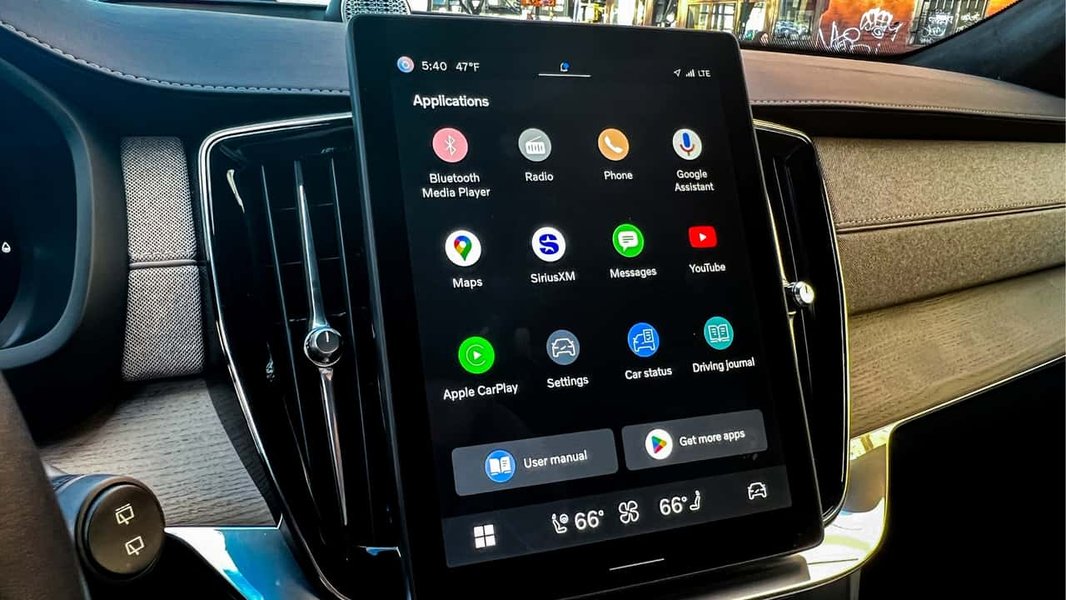
A modern car interior featuring an integrated infotainment system, highlighting the seamless but complex nature of in-car tech.
Inspecting Fuses
A blown fuse can sometimes be the culprit for a completely dead or unresponsive system.
- Consult Manual: Refer to your car's owner's manual to locate the fuse box (often under the dashboard or in the engine bay) and identify the specific fuse(s) for the infotainment system or radio.
- Check Fuse: Carefully remove the relevant fuse using a fuse puller (usually found in the fuse box or toolkit). Inspect it for a broken wire or discoloration.
- Replace if Blown: If the fuse is blown, replace it with a new fuse of the exact same amperage rating. Never use a fuse with a higher amperage.
Comparing Reset Options: A Quick Reference
When to Seek Professional Help
While many infotainment system issues are resolvable with DIY resets, some situations warrant a visit to a qualified automotive technician or dealership:
- Persistent Freezing: If your system repeatedly freezes despite multiple soft resets and power cycles.
- Complete System Failure: When the screen remains entirely black or unresponsive after all DIY reset attempts, including a battery disconnect.
- Hardware Issues: If you suspect physical damage, hear unusual noises from the unit, or if the touchscreen is visibly cracked or unresponsive to touch even after a reboot.
- Safety System Integration: Modern infotainment systems often integrate with crucial safety features like backup cameras, parking sensors, or climate controls. If freezing affects these functions, it becomes a safety concern.
- Warranty Considerations: If your vehicle is still under warranty, it's often best to consult your dealership before attempting advanced troubleshooting to ensure you don't inadvertently void coverage.
- Post-Update Issues: If the system became inoperable immediately after a software update, the dealership may need to perform a re-flash.
Frequently Asked Questions (FAQ)
Conclusion
A frozen car infotainment system can be a major inconvenience, but it's often a resolvable issue with the right approach. By understanding the common causes—ranging from software glitches and memory overload to connectivity problems and environmental factors—you empower yourself to diagnose and fix many issues effectively. The universal soft reset, initiated by simply holding down the power or volume button, is your most potent and safest first line of defense.
Remember to keep your system's software updated, manage your connected devices carefully, and protect your vehicle's electronics from extreme temperatures to prevent future problems. While most issues can be handled with these DIY methods, don't hesitate to seek professional assistance if problems persist, especially if they impact safety features or if your vehicle is under warranty. With these insights and troubleshooting techniques, you can keep your car's digital hub running smoothly, enhancing your driving experience and ensuring a glitch-free journey.
