

A comprehensive guide to troubleshooting and resolving common infotainment issues in your Toyota, ensuring a smooth and connected driving experience.
Experiencing issues with your Toyota Audio Multimedia system freezing, crashing, or displaying a black screen can be incredibly frustrating. The good news is that many common problems, often affecting popular US models like the Toyota Camry, RAV4, Highlander, Tundra, Tacoma, and bZ4X, can be resolved with simple troubleshooting steps. This comprehensive guide provides a complete Toyota Multimedia System Fix, covering everything from soft resets and master resets to crucial software updates, often without requiring a trip to the dealership.
Understanding Common Toyota Multimedia System Glitches
Modern Toyota vehicles are equipped with sophisticated infotainment systems that provide navigation, entertainment, and connectivity. When these systems malfunction, it can significantly detract from your driving experience. Here are some of the most frequently reported issues:
- System Freezing: The screen becomes unresponsive to touch or button presses, halting all functions.
- Unexpected Crashes & Reboots: The multimedia system suddenly reboots or shuts down without warning, a common concern for some 2023 bZ4X owners.
- Black Screen: The display goes completely dark, though sometimes the backup camera might still function, indicating a display rather than a full system failure.
- Unresponsive Touchscreen: Touch inputs are ignored, making it impossible to navigate menus or select options.
- Bluetooth Connectivity Problems: Difficulty pairing devices or frequent disconnections, impacting hands-free communication and audio streaming.
- Navigation System Inaccuracies: Issues with map data, slow GPS acquisition, or incorrect route guidance.
- Apple CarPlay/Android Auto Disconnections: Frequent interruptions or failure to launch these essential smartphone integration features.
These problems often stem from software glitches, outdated firmware, or temporary system errors rather than permanent hardware failures. Most can be resolved with the right troubleshooting steps.
Immediate Action: The Soft Reset for Your Toyota Multimedia System
A soft reset is your first line of defense against minor glitches, much like restarting your smartphone or computer. This process reboots the system without deleting your personal data, settings, or paired devices, making it a safe and easy initial step for a Toyota multimedia system freezing fix.
How to Perform a Soft Reset
- Turn Off Your Vehicle: Ensure the engine is completely off and the key is removed from the ignition (or the power button is off for keyless models).
- Wait for Complete Power Down: Allow approximately one minute for the system to fully power down and clear temporary memory.
- Restart Your Vehicle: Turn your vehicle back on and check if the infotainment system functions properly.
Alternative Method for Quick Reboots
Many Toyota models, especially those with the newer Toyota Audio Multimedia system (2020-2023 and newer), offer a quicker soft reset method:
- Press and Hold Power/Volume Knob: Press and hold the audio system's power/volume knob for 10-15 seconds until the system reboots and the Toyota logo appears. For some older Entune systems, this might also apply.
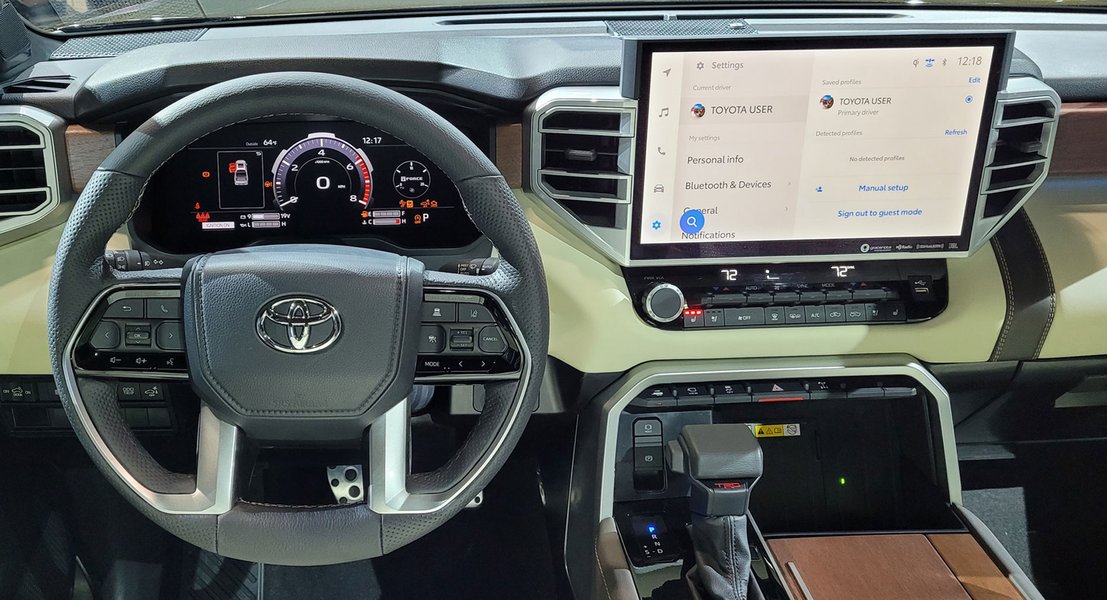
An example of a modern Toyota Audio Multimedia system display.
When a Soft Reset Isn't Enough: Master Resetting Your System
If the soft reset doesn't resolve your Toyota Audio Multimedia system crash fix, a master reset (also known as a factory reset) might be necessary. This more comprehensive solution erases all personal data and returns the system to its original factory settings. It's a powerful tool but should be used when other solutions fail.
Important Considerations Before a Master Reset
A master reset will delete all your personalized settings, including paired Bluetooth devices, saved navigation destinations, radio presets, app logins, and system customizations. Be prepared to reconfigure your system afterward.
How to Perform a Master Reset
- Access the Settings Menu: On your multimedia screen, navigate to the "Settings" menu (often represented by a gear icon).
- Locate Reset Options: Look for "System" or "General" options, then select "Factory Reset," "Reset All Settings," or "Delete Personal Data."
- Confirm Your Selection: Follow the on-screen prompts to confirm the reset. The process may take several minutes.
- Reconfigure System: After the system reboots, you will need to reconfigure your preferences and repair your devices.
Advanced Hard Reset Method (Battery Disconnect)
For persistent issues or when the screen is completely unresponsive, some owners on forums suggest a full hardware reset by disconnecting the battery:
- Disconnect Negative Battery Terminal: For 10-15 minutes, disconnect the negative battery terminal. This completely cuts power to the head unit.
- Caution: This method can sometimes reset other vehicle systems. If you're not comfortable working with your car's battery, consult a professional.
Keeping Current: Your Toyota Infotainment Software Update Guide
Outdated software is a common culprit for a variety of multimedia system problems. Toyota regularly releases updates that fix bugs, improve performance, and add new features. Keeping your system updated is a proactive Toyota Multimedia System Fix strategy.
Over-the-Air (OTA) Updates
Newer Toyota models with the Audio Multimedia system (typically 2021 and newer) can receive updates wirelessly. This is the easiest way to ensure you have the latest firmware.
- Connect to Wi-Fi: Go to your multimedia system settings and connect to a reliable Wi-Fi network (home Wi-Fi or mobile hotspot).
- Check for Updates: Navigate to the "Software Update" section within your settings.
- Download and Install: Follow the on-screen instructions to download and install available updates. Keep the vehicle running during the process.
- Consent: You might need to accept terms or consent to Connected Service Master Data to perform the update.
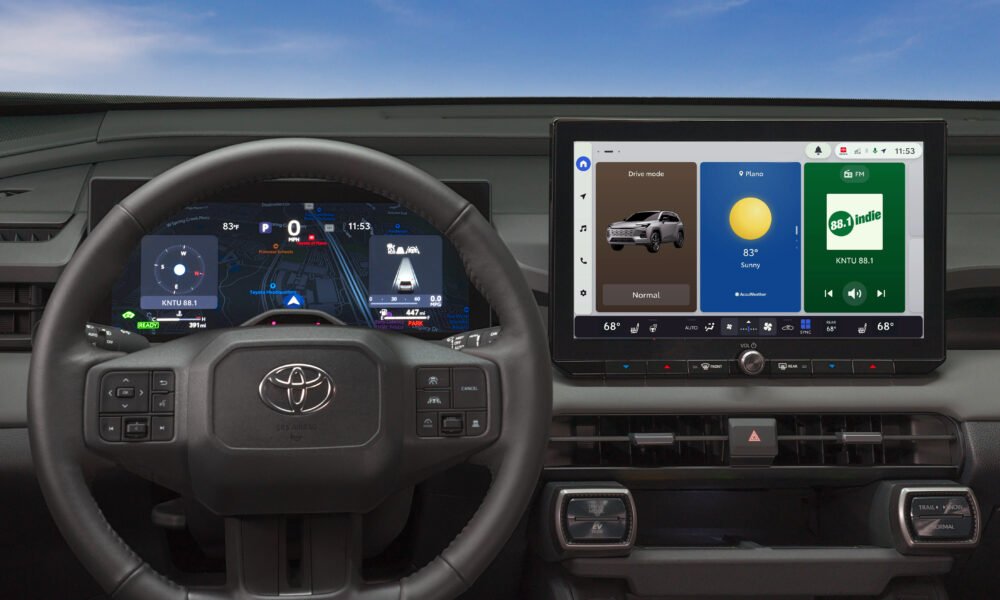
The home screen of Toyota's Audio Multimedia system, where updates can be initiated.
Manually Updating Toyota Multimedia Software via USB
For models without OTA capability or for major updates, you can use a USB drive for manual installation.
- Visit Toyota's Software Update Portal: Go to the official Toyota software update website (e.g., toyota.com/firmware-updates - Toyota Firmware Updates).
- Enter Vehicle Information: Input your vehicle's VIN or select your model and year to find compatible updates.
- Download Update File: Download the latest firmware file to your computer.
- Prepare USB Drive: Copy the update package to a properly formatted USB drive (usually FAT32 or exFAT). Ensure the file is at the root directory.
- Insert USB into Vehicle: Start the car (ready mode) and insert the USB drive into the vehicle's data USB port.
- Follow On-Screen Instructions: On your multimedia screen, navigate to 'Settings' > 'About' > 'Software Update' and initiate the update. Do not turn off the vehicle during this critical process.
Do not interrupt power during a USB update. Use a reliable USB drive and follow the official instructions for your unit to prevent system corruption.
Addressing Specific Problems: Touchscreen, Black Screen, and Connectivity
Toyota Touchscreen Not Responding Fix
An unresponsive touchscreen can be caused by various factors, from simple obstructions to deeper software issues. Here’s how to approach a Toyota touchscreen not responding fix:
- Clean the Screen: Gently clean the touchscreen with a microfiber cloth and a screen-safe cleaner to remove dirt or residue that might interfere with touch sensitivity.
- Remove Screen Protectors: If you have a screen protector, ensure it's properly applied and not causing issues. Try removing it temporarily to test.
- Perform Resets: Start with a soft reset, then a master reset if the problem persists.
- Check for Updates: Ensure your multimedia software is up to date, as updates often include touchscreen performance improvements.
- Isolate Devices: Disconnect any connected USB devices or Bluetooth devices, and test if the touchscreen responds without them.
- Dealership Visit: If touch points are consistently unresponsive or dead in specific zones, it might indicate a hardware issue with the digitizer, requiring professional inspection.
Toyota Multimedia Black Screen Fix
A black screen can be alarming, but often has a simple solution. Here's how to troubleshoot a Toyota multimedia black screen fix:
- Soft Reset: Immediately try a soft reset by holding the power/volume knob for 10-15 seconds.
- Cycle Vehicle Power: Turn the car completely off, open the driver's door, wait 2-3 minutes for the system to fully power down, then restart the vehicle.
- Remove Accessories: Unplug all devices from USB and 12V ports, and remove any SD cards (if applicable).
- Check 12V Battery Health: A weak or failing 12V battery can cause boot loops or black screens, especially in cold weather. Ensure your vehicle's battery is in good condition.
- Backup Camera Functionality: If the backup camera still displays an image but the main menus are black, it suggests a display issue rather than a complete system failure. In this case, try a software update via USB if the system responds after a reboot.
- Dealership Visit: If a persistent black screen remains after trying resets and updates, it could indicate head unit, wiring harness, or fuse issues, necessitating a dealership diagnosis.

A common scenario: a multimedia display that has suddenly turned to a black screen.
Troubleshooting Apple CarPlay and Android Auto Issues
Many Toyota owners rely on Apple CarPlay and Android Auto for seamless smartphone integration. If you're experiencing disconnects, freezing, or unresponsiveness with these features, consider the following:
- Cable Quality: Ensure you are using a high-quality, manufacturer-approved USB cable, especially for wired connections. Faulty or generic cables are a common cause of connectivity issues.
- Restart Devices: A simple restart of both your smartphone and the Toyota multimedia system can often resolve temporary glitches.
- Re-pair Device: On both your car's Bluetooth settings and your phone, "forget" or delete the paired device, then re-pair it as a new device. This can fix corrupted connection data.
- Software Updates: Ensure your phone's operating system (iOS or Android) and the CarPlay/Android Auto apps are up to date. Also, verify your Toyota's multimedia system firmware is current.
- Clear Cache (Android Auto): On your Android phone, go to App Info for Android Auto and try clearing its cache and data.
- Test with Another Phone: If possible, try connecting a different compatible smartphone to determine if the issue is with your car's system or your specific phone.
Model-Specific Considerations for US Toyota Owners
While many troubleshooting steps are universal, some Toyota models in the US market might exhibit specific quirks or common problems:
- Toyota RAV4 (2021+ with new Audio Multimedia): Users might encounter issues like slow performance or occasional freezes. Ensuring all software, including the new Toyota Audio Multimedia system, is up-to-date is key. Some 2023 models reported screen blanking issues that could sometimes be resolved by shifting through gears (Drive, Reverse, Park) repeatedly.
- Toyota Camry & Corolla Systems: Older Entune systems may require slightly different reset procedures. Frequent CarPlay cable issues are reported; replacing the cable and updating the head unit typically stabilizes connections.
- Toyota bZ4X Specific Problems: Owners of the 2023 bZ4X have reported infotainment screens constantly rebooting or going black. Dealership software updates have often fixed these issues. If the screen is turning off, getting stuck, or disconnecting your phone, a specific update might be necessary. Keep your OTA updates current.
- Toyota Highlander: Owners sometimes report an occasional blank screen where the camera still works. A soft reset combined with a software update commonly resolves this.
- Toyota Tundra and Tacoma: If the "System Reset" option appears grayed out, try completing any pending profile setups first, then attempt the reset. USB updates are often a quick cure for these models.
Always consult your owner's manual for model-specific instructions before attempting any reset procedures. US Toyota owner communities can also offer valuable insights and shared experiences.
When to Seek Professional Help: Dealership Visits and Estimated Costs
While many issues can be resolved at home, there are times when your Toyota Multimedia System Fix requires professional diagnosis and repair. Consider contacting your local American Toyota dealership when:
- Persistent Problems: Issues continue after multiple soft resets, master resets, and software update attempts.
- Suspected Hardware Issues: You suspect physical damage, a faulty screen, motherboard, or GPS antenna.
- Warranty Coverage: Your vehicle is still under warranty, which typically covers multimedia system defects for a specified period (e.g., 3 years/36,000 miles for basic warranty).
- Complex Diagnostics: The problem requires specialized diagnostic tools and expertise that only a certified Toyota technician can provide.
- No Resolution: You have exhausted all troubleshooting steps outlined in this guide and your owner's manual.
- Unusual Behavior: Any strange or intermittent behavior that you cannot identify or reproduce consistently.
Document the issue with photos or videos if possible. Note your model year and current software version. This information helps the dealership diagnose the problem more efficiently.
Estimated Dealership Costs (US Context, Out of Warranty)
Repair costs can vary significantly depending on the issue and whether your vehicle is still under warranty:
- Diagnostic Fee: Typically ranges from $100-$250 to identify the root cause of the problem. This fee is often waived if repairs are covered under warranty.
- Software Update (Out of Warranty): While sometimes performed as part of routine service, a specific complex software re-flash out of warranty might incur a fee, potentially $0-$200.
- Screen Replacement: Replacing a faulty screen can be expensive, often ranging from $800-$1,200+ for parts and labor.
- Complete Unit Replacement: Replacing the entire head unit can be significantly higher, potentially $1,500-$2,500+, depending on the complexity of the system.
Always get a detailed quote from your Toyota service center. They can provide an accurate assessment based on your specific vehicle and the nature of the malfunction. Many dealerships now offer complimentary multimedia system checks, especially for newer models experiencing common issues.
Preventing Future Multimedia System Issues: Best Practices
Regular maintenance and mindful usage can significantly reduce the likelihood of experiencing future freezing, crashing, or black screen problems in your Toyota multimedia system.
- Promptly Install Software Updates: Regularly check for and install both Over-the-Air (OTA) and USB software updates. Reboot your system after major updates.
- Use Quality Cables: For Apple CarPlay and Android Auto, always use MFi-certified cables for iPhones or high-quality data cables for Android devices. Avoid cheap, generic cables.
- Manage Connected Devices: Limit the number of apps running on your connected phone and keep your phone's operating system updated. Periodically clear old Bluetooth pairings and unused profiles from your car's system.
- Maintain 12V Battery Health: Ensure your vehicle's 12V battery is healthy. Low voltage can lead to multimedia system instability and unexpected reboots.
- Keep the Screen Clean: Regularly clean your touchscreen with a microfiber cloth to prevent dirt and oils from affecting touch sensitivity.
- Avoid Unapproved Apps: Be cautious about installing unapproved third-party apps that might conflict with system operation.
Your Step-by-Step Toyota Multimedia System Fix Plan
Follow this systematic approach to troubleshoot and resolve most issues with your Toyota's infotainment system:
- Perform a Soft Reset: Hold the power/volume knob for 10-15 seconds until the system reboots.
- Cycle Vehicle Power: If still frozen, turn the car off, open the driver door, wait a few minutes, then restart. Unplug all USB devices and accessories.
- Check for OTA Updates: Connect to Wi-Fi and navigate to Settings > Software Update to check for and install available over-the-air updates.
- Perform USB Update: If no OTA updates are available or issues persist, download the latest firmware from Toyota's official website and install it via a USB drive.
- Execute a Master Reset: If problems continue, perform a factory reset via Settings > Personal Info/System > Delete Personal Data to clear all personalized settings.
- Schedule Dealership Diagnosis: If all the above steps fail, or if you suspect a hardware fault, contact your local Toyota dealership for professional assessment.
Frequently Asked Questions (FAQ)
Conclusion
Dealing with a freezing, crashing, or black screen Toyota multimedia system can be a nuisance, but most issues are resolvable with systematic troubleshooting. By starting with simple soft resets, progressing to master resets if necessary, and regularly updating your software, you can often restore your Toyota's infotainment system to proper working order. Remember to leverage official Toyota resources and consult your owner's manual for model-specific guidance. If all self-help measures are exhausted, your local Toyota dealership stands ready to provide expert assistance. Proactive maintenance and timely updates are key to ensuring a smooth, connected, and enjoyable driving experience in your Toyota.
