

Highlights of a Seamless Wireless CarPlay Experience
- Effortless Connectivity: Say goodbye to cables with automatic, instant connections every time you start your car.
- Enhanced Stability: Discover advanced troubleshooting to overcome common lags, audio delays, and dropped connections.
- Smart Upgrades: Learn how a simple dongle can revolutionize your in-car infotainment, making old systems feel new again.
The open road calls, and with it, the desire for effortless connectivity. Apple CarPlay has long been a staple for iPhone users, transforming car dashboards into intuitive extensions of their devices. However, the requirement of a wired connection can often interrupt this seamless vision, leading to fumbled cables and momentary distractions. This is where the Apple CarPlay wireless dongle steps in as a game-changer, offering a powerful solution to convert your wired setup into a truly wireless one.
This comprehensive guide delves into the world of wireless CarPlay dongles, explaining not just what they are and how they work, but also providing an exhaustive playbook for troubleshooting common issues like connection lags, audio delays, and sync problems. Our goal is to equip you with the knowledge to achieve a consistently smooth and reliable CarPlay experience, letting you focus on the drive ahead while staying effortlessly connected.
What Exactly is an Apple CarPlay Wireless Dongle?
The Tiny Device That Unlocks Wireless Freedom
An Apple CarPlay wireless dongle is a compact, plug-and-play device designed to upgrade vehicles that come equipped with wired CarPlay. In essence, it acts as a bridge, converting your car's existing USB-based CarPlay functionality into a wireless experience. This means you can keep your iPhone in your pocket, bag, or on a wireless charging pad, and still have full access to CarPlay's features—maps, music, messages, and calls—displayed directly on your car's infotainment screen.
Often resembling a small USB flash drive, these dongles are unobtrusive and designed for quick integration. They are a cost-effective alternative to replacing an entire head unit, allowing a significant upgrade to your driving experience without a hefty investment. The primary function is to eliminate the need for a physical cable connection each time you enter your car, offering unmatched convenience.

A typical Apple CarPlay wireless dongle, showcasing its compact design.
Why Go Wireless? The Core Benefits
- Unmatched Convenience: Your phone connects automatically when you start your car, no plugging in required.
- Reduced Wear and Tear: Protect your iPhone's charging port from constant plugging and unplugging.
- Tidy Cabin: Eliminate clutter from cables around your dashboard and center console.
- Seamless Transitions: Easily get in and out of your car without remembering to connect or disconnect your phone.
The Ingenious Mechanism: How Wireless Dongles Operate
A Dual-Technology Approach for Flawless Connectivity
The magic behind wireless CarPlay dongles lies in their clever use of two distinct wireless technologies: Bluetooth and Wi-Fi. When you first set up the dongle, it utilizes Bluetooth for an initial handshake and pairing with your iPhone. This creates a quick, low-bandwidth connection that establishes the groundwork for CarPlay.
Once this initial pairing is complete, the dongle then creates its own local, peer-to-peer Wi-Fi network. Your iPhone automatically switches from the Bluetooth connection to this dedicated Wi-Fi network. It's this Wi-Fi connection that handles the heavy lifting—the high-bandwidth data transfer required for all CarPlay functions, such as streaming high-quality audio, displaying real-time navigation maps, processing voice commands, and managing app interactions. The car's infotainment system, which is designed to communicate with a wired iPhone, "sees" the dongle as if it were a physically connected device, translating the wireless signals into a format it understands.
The Setup Sequence Explained:
- Power Up: The dongle is plugged into your car's CarPlay-compatible USB port and powers on with the vehicle.
- Bluetooth Handshake: Your iPhone detects the dongle via Bluetooth, initiating the first connection.
- Wi-Fi Bridge: The dongle establishes a private Wi-Fi network, and your iPhone automatically joins it.
- Data Flow: All CarPlay data—audio, video, touch inputs—is transmitted over this stable Wi-Fi connection.
- Seamless Experience: CarPlay appears on your car's screen, functioning just as it would with a wired connection, but without the cable.
“Think of the dongle as a sophisticated interpreter: it speaks your car’s wired language to the vehicle and your iPhone’s wireless language to the device, seamlessly bridging the gap.”
The Pros and Cons: Weighing Your Options
Is Wireless CarPlay Right for You?
Adopting a wireless CarPlay dongle brings a host of advantages, but it's also essential to be aware of potential trade-offs. Understanding these can help set realistic expectations and guide your troubleshooting efforts.
Advantages of Wireless CarPlay
- ✓ No more fumbling with cables every time you get in and out of the car.
- ✓ Reduces wear on your iPhone's charging port and USB cables.
- ✓ Keeps your car's interior cleaner and less cluttered.
- ✓ Automatic connection, often within seconds of starting your vehicle.
- ✓ Frees up your iPhone to be placed anywhere in the cabin or charged wirelessly.
Potential Disadvantages
- Can sometimes introduce a slight delay or lag in audio and visual responses compared to a direct wired connection.
- Susceptible to wireless interference, which can lead to dropped connections or stuttering.
- Requires occasional firmware updates for the dongle, iOS updates, and car infotainment system updates.
- The dongle itself is an additional device to purchase and manage.
- May consume slightly more iPhone battery due to continuous Wi-Fi transmission, necessitating a separate charging solution.
First-Time Pairing: Setting Up Your Wireless CarPlay Dongle
A Step-by-Step Guide for Initial Connection
Setting up your wireless CarPlay dongle for the first time is typically a straightforward process. Follow these steps to ensure a smooth initial connection:
- Plug in the Dongle: Insert the wireless CarPlay dongle into the car's specific USB port that you normally use for wired CarPlay.
- Start Your Car: Power on your vehicle and wait for the infotainment system to fully boot up. The dongle will also power on, often indicated by an LED light.
- Prepare Your iPhone: Ensure both Bluetooth and Wi-Fi are enabled on your iPhone. Temporarily disable Airplane Mode and any active VPN connections, as these can interfere with the initial pairing.
- Initiate Pairing: On your iPhone, navigate to Settings > General > CarPlay. Look for your car's name or the dongle's unique identifier in the list of available cars.
- Connect via Bluetooth: When prompted, select the dongle's Bluetooth ID from your iPhone's Bluetooth settings and confirm the pairing.
- Approve CarPlay: Accept any CarPlay connection prompts that appear on both your iPhone and your car's infotainment screen.
- Automatic Wi-Fi Switch: The dongle will then establish a Wi-Fi connection with your iPhone, and CarPlay should launch wirelessly on your car's display.
- Verify Functionality: Test various CarPlay features like navigation, music playback, and Siri commands to ensure everything is working correctly.
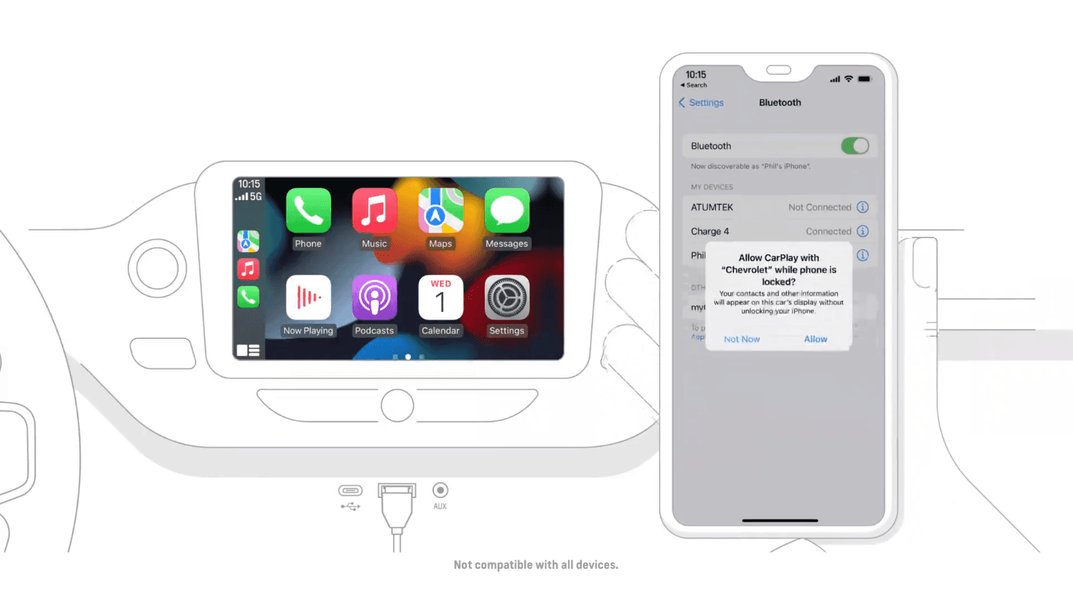
The familiar CarPlay interface, now accessible wirelessly.
Wireless Apple CarPlay Fix: Troubleshooting Common Issues
Resolving Connection Lags, Audio Delays, and Sync Problems
While wireless CarPlay offers immense convenience, it's not immune to occasional hiccups. Connection issues, audio lag, and desynchronization are common concerns. Fortunately, most of these problems can be resolved with systematic troubleshooting. This section provides a comprehensive Wireless Apple CarPlay Fix guide.
Quick Checks for Immediate Resolution
- Restart Devices: Turn your car off and on again, and perform a full restart of your iPhone. This often clears temporary glitches.
- Verify Bluetooth & Wi-Fi: Ensure both are actively enabled on your iPhone.
- Check Dongle Connection: Make sure the dongle is securely plugged into the correct USB port in your car.
- Forget and Re-pair: On your iPhone, go to Settings > General > CarPlay, select your car/dongle, and tap "Forget This Car." Then, on your car's infotainment system, delete your iPhone from its paired Bluetooth devices list. Restart both devices and re-initiate the pairing process from scratch.
- Disable VPN/Hotspot: Temporarily turn off any VPN connections or Personal Hotspot on your iPhone, as they can interfere with CarPlay's dedicated Wi-Fi connection.
Addressing Connection Failures and Frequent Dropouts
If your CarPlay connection fails to establish or frequently drops, consider these solutions:
- Proximity Check: Keep your iPhone closer to the dongle and car's head unit, especially during the initial connection phase.
- Reduce Interference: Wireless signals can be affected by other devices. Turn off other Bluetooth accessories (like headphones or smartwatches) or unnecessary Wi-Fi networks in the car.
- Update Firmware: Check if there are any available firmware updates for your dongle. Many dongle manufacturers provide companion apps or web interfaces for this purpose. Keep your iPhone's iOS and your car's infotainment software updated as well.
- Try a Different USB Port: If your car has multiple USB ports, experiment with a different one. Ensure it's a data-enabled port, not just for charging.
- Clean USB Ports: Inspect your car's USB port for any debris or lint that might be obstructing a solid connection.
- Remove Other Paired Phones: If multiple phones are paired with your car, this can sometimes cause confusion. Temporarily remove other phones from the car's Bluetooth/CarPlay list.
Fixing Audio Delay, Stuttering, and Map Voice Desync
Audio and visual synchronization issues are often frustrating. Here’s how to minimize latency and improve sync:
- Close Background Apps: On your iPhone, close any unnecessary apps running in the background to free up processing power and bandwidth.
- Free Up Storage: Ensure your iPhone has at least 10-15% of its storage free, as low storage can impact performance.
- Check Siri: Make sure Siri is enabled on your iPhone, as CarPlay relies on it for voice commands and prompts.
- Minimize Wi-Fi Congestion: Avoid simultaneously using your iPhone for other demanding Wi-Fi activities (e.g., tethering, large downloads) while using CarPlay.
- Keep Phone Cool: An overheating iPhone can throttle its performance, potentially causing lag. Ensure your phone isn't in direct sunlight or a poorly ventilated area.
- Switch to Wired (Diagnostic): Temporarily switch back to a wired CarPlay connection. If the lag disappears, the issue is almost certainly related to wireless interference or the dongle itself.
“If video and audio consistently drift out of sync on longer journeys, a quick restart of the dongle or your car’s head unit can often clear up buffer issues and restore proper timing.”
When Wireless CarPlay Takes Too Long to Connect
While some initial delay is normal, consistently slow connection times can be frustrating.
- Enable Auto-Join: On your iPhone, go to Settings > Wi-Fi, find the dongle's Wi-Fi network, and ensure "Auto-Join" is enabled.
- Boot Order: Experiment with the order of operations. Try starting the car, waiting about 30 seconds for the dongle to initialize, and then unlocking your iPhone.
- Forget Weak Wi-Fi Networks: Your iPhone might try to connect to known but weak Wi-Fi networks before the dongle's. Forget any unnecessary or distant Wi-Fi networks in your phone's settings.
- Check Dongle Settings: Some dongles have companion apps that allow you to adjust connection priorities or Wi-Fi channels, which can speed up the handshake.
Wired vs. Wireless CarPlay: A Comprehensive Comparison
Balancing Reliability with Unrivaled Convenience
The choice between wired and wireless CarPlay often boils down to a trade-off between absolute reliability and sheer convenience. Understanding the nuances of each can help you decide when to embrace the wireless freedom and when a cable might still be your best friend.
| Factor | Wired CarPlay | Wireless CarPlay (with Dongle) |
|---|---|---|
| Connection Speed | Almost instantaneous upon plugging in. | Typically 10-60 seconds for automatic connection after car start. |
| Reliability & Stability | Highest due to direct physical connection; less prone to interference. | Generally good, but can be affected by RF interference or software glitches. |
| Audio/Video Sync | Best, with minimal to no latency for audio and visual feedback. | Generally good, but may experience slight delays or drift on long drives. |
| Convenience | Requires plugging in your iPhone every time you use it. | Automatic connection without physical interaction; truly hands-free. |
| Phone Charging | Charges your iPhone directly via the USB cable while connected. | Requires a separate wireless charging pad or another USB port for charging. |
| Cable Clutter | Can lead to a cluttered dashboard with cables. | Significantly reduces cable clutter for a cleaner interior. |
| Troubleshooting | Simpler, often related to cable quality or software. | More complex, involves managing dongle, iPhone, and car system settings. |
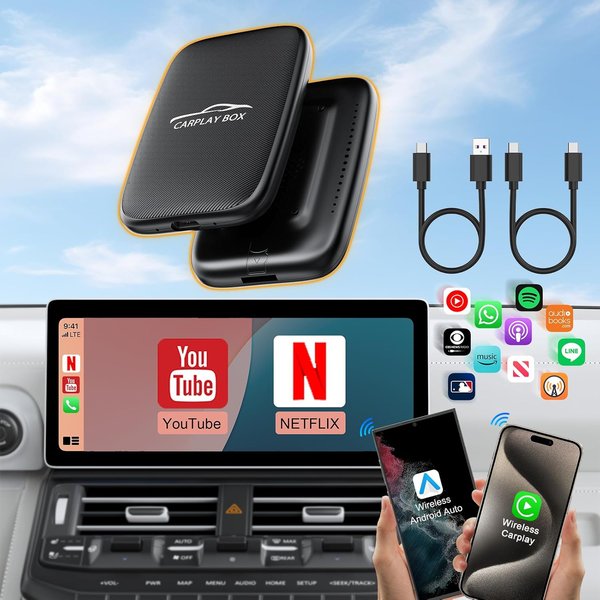
A variety of wireless CarPlay dongles available in the market.
Maintaining Optimal Performance: Care and Best Practices
Ensuring a Long-Lasting and Reliable Wireless Experience
To keep your wireless CarPlay running smoothly and prevent future issues, a bit of routine maintenance and adherence to best practices can make a significant difference.
Regular Updates are Key
- iPhone iOS: Always keep your iPhone updated to the latest stable iOS version. Apple frequently releases updates that improve CarPlay stability and compatibility.
- Dongle Firmware: Many dongles receive firmware updates that fix bugs, improve connection speeds, and enhance compatibility with new iOS versions or car models. Check the manufacturer's website or app regularly.
- Car Infotainment System: Don't forget your car's system. Manufacturer updates can resolve underlying issues that affect CarPlay performance. Consult your vehicle's manual or dealership.
Connection Hygiene and Environmental Factors
- Limit Paired Devices: To avoid conflicts and speed up connection times, consider limiting the number of phones paired to your car's Bluetooth system to just one or two primary drivers.
- Disable Redundant Wi-Fi: Turn off your iPhone's Personal Hotspot feature if you're not using it, as it can compete for Wi-Fi bandwidth with the dongle.
- Clean USB Ports: Periodically inspect and carefully clean your car's USB ports to ensure a solid physical connection for the dongle.
- Manage Phone Temperature: Wireless communication, especially Wi-Fi, can generate heat in your iPhone. Avoid leaving your phone in direct sunlight or in areas where it can overheat, as thermal throttling can impact performance.
The "Clean Slate" Wireless Apple CarPlay Fix Procedure
When All Else Fails, Start Fresh
If persistent problems continue to plague your wireless CarPlay experience, sometimes the most effective solution is to perform a complete reset, effectively giving all devices a "clean slate" to re-establish their connections.
- On Your iPhone: Go to Settings > General > CarPlay, select your car/dongle, and tap "Forget This Car."
- On Your Car's Infotainment System: Navigate to the Bluetooth or CarPlay settings and remove your iPhone from the list of paired devices.
- Restart Both: Perform a full power cycle of your car (turn off, open door, wait 30 seconds, close door, restart) and your iPhone (power off completely, then restart).
- Check iPhone Settings: Ensure Wi-Fi and Bluetooth are ON, and Airplane Mode and any VPN are OFF.
- Power Cycle Dongle: Unplug the wireless dongle from the car's USB port, wait for at least 10 seconds, then plug it back in.
- Re-Initiate Pairing: Follow the initial setup steps described earlier: go to your iPhone's Bluetooth settings, find the dongle, pair, and accept all CarPlay permissions.
- Patience is Key: Allow up to a minute for the system to auto-switch to Wi-Fi and for the CarPlay screen to fully appear.
This video provides valuable insights into fixing common issues with wireless Apple CarPlay adapters. It’s relevant as it demonstrates practical troubleshooting steps for maintaining a stable connection, addressing problems like connectivity drops and lag. The visual guide helps users understand and implement solutions effectively, complementing the detailed textual advice provided in this article.
When to Seek Professional Assistance
Knowing When to Call in the Experts
While most wireless CarPlay issues can be resolved with DIY troubleshooting, there are situations where professional help might be necessary. Consider reaching out to an expert if:
- You've exhausted all troubleshooting steps, and the problem persists.
- The issue consistently occurs across multiple iPhones or with different dongles, suggesting a car-specific problem.
- Your car's infotainment system exhibits other unrelated problems or malfunctions.
- You suspect hardware failure in either your car's USB port, head unit, or the dongle itself.
For car-related issues, contact your vehicle manufacturer's service center. For dongle-specific problems, reach out to the dongle manufacturer's customer support.
Frequently Asked Questions (FAQ)
Conclusion
The Apple CarPlay wireless dongle is a remarkable innovation that brings unparalleled convenience to your daily drives. By converting your car's wired CarPlay into a seamless wireless experience, it eliminates cable clutter and enhances the overall user journey. While occasional connection lags, audio delays, or sync issues can arise, the comprehensive troubleshooting strategies outlined in this guide provide an effective Wireless Apple CarPlay Fix for most users.
Remember, the key to a consistently smooth wireless CarPlay experience lies in ensuring compatibility, performing proper initial setup, keeping all your devices (iPhone, dongle, and car system) updated, and proactively addressing any interference. By understanding how these devices work and how to resolve common problems, you can fully embrace the freedom and efficiency of wireless CarPlay, making every journey more enjoyable and connected.
